Software Registration / Activation
Before you can use your PDL diagnostic tool (after initial purchase), software activation is required.
The free online ShopStream Connect™ PC based application is used to register and activate your software.
| 1. | From your PC, download the ShopStream Connect (SSC) application from: |
https://eu.sun-workshopsolutions.com/en/products/shopstream_connect
| 2. | Start the installation. If the installation does not automatically start, double-click the SSC installation file ShopStreamConnect.exe, that downloaded onto your PC. |
| 3. | To complete the installation, follow the screen prompts. |
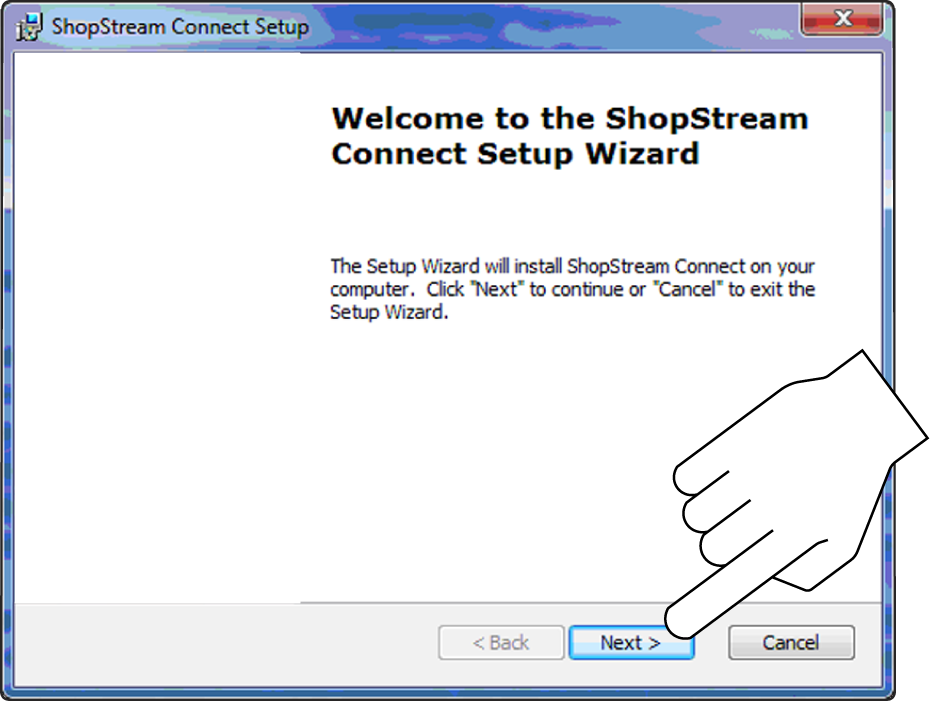
| 4. | Once installed, open the application from the SSC icon created on the desktop. |

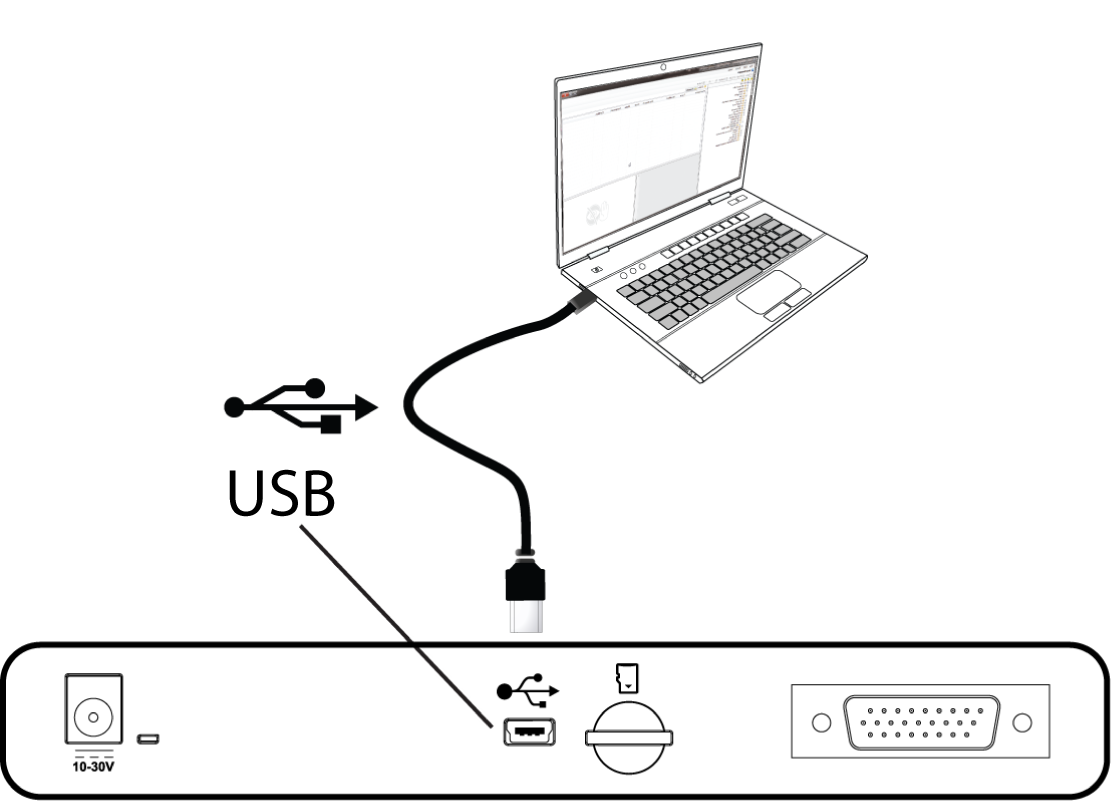
| 5. | Connect the USB cable to the diagnostic tool and your PC. |
| 6. | On the diagnostic tool Home screen select Tools. |

| 7. | Select Connect-to-PC. |
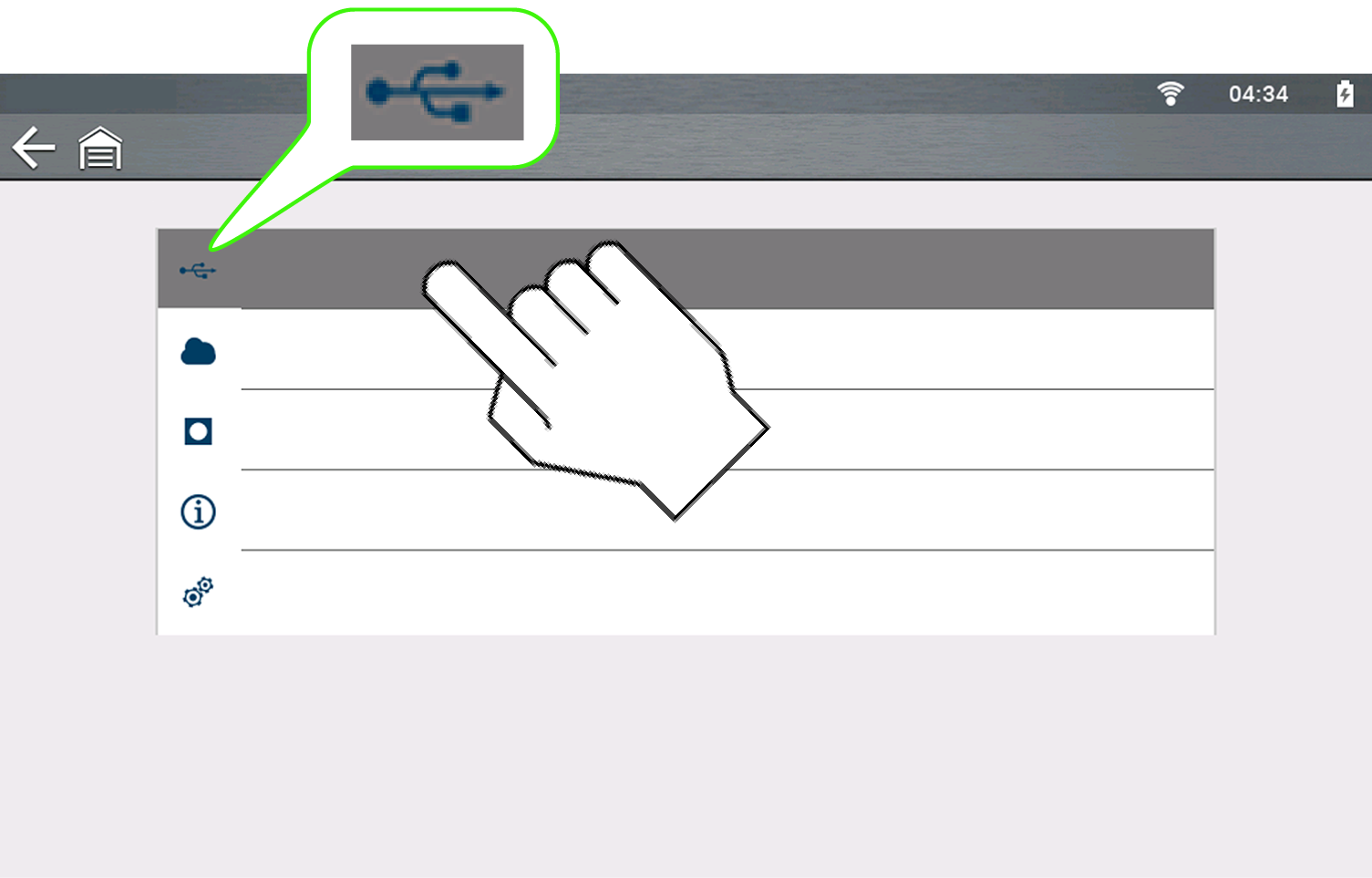
The diagnostic tool establishes communication with the SSC application.
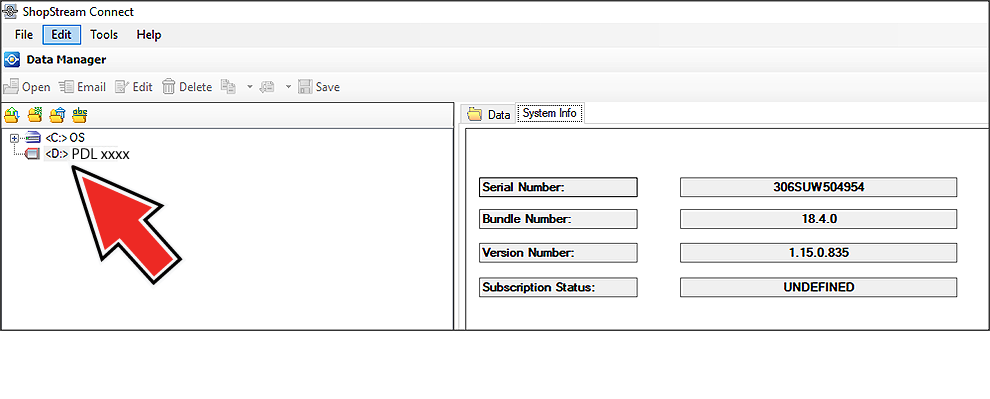
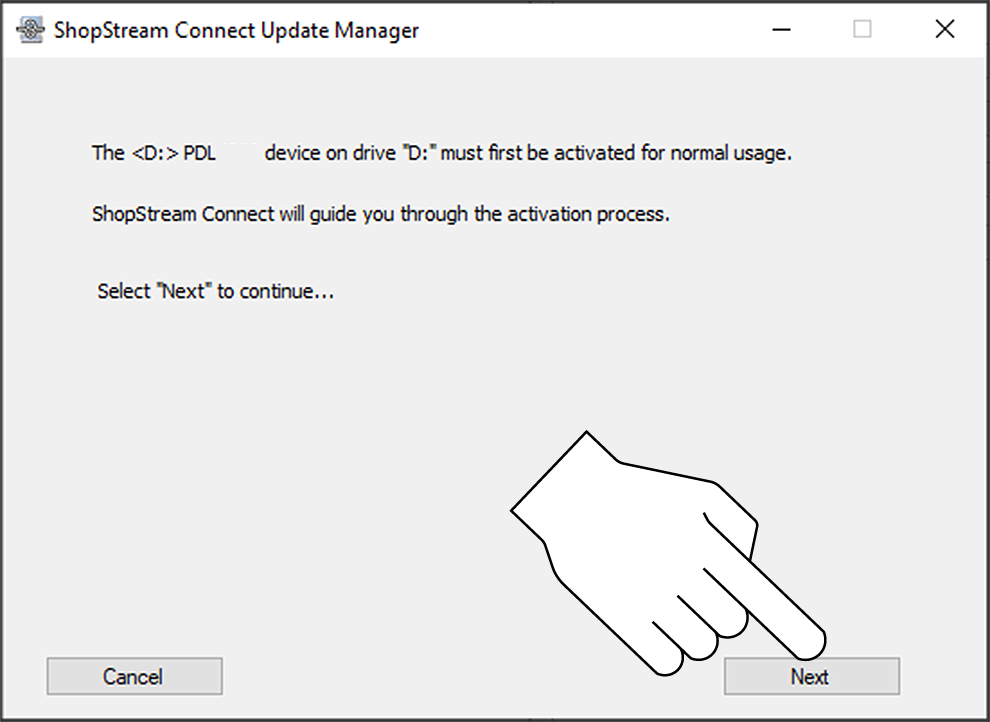
| 8. | The SSC Update Manager "Activation" screen automatically displays. Select Next to start the process. |
| 9. | Agree to the software license agreement, then select Next. |
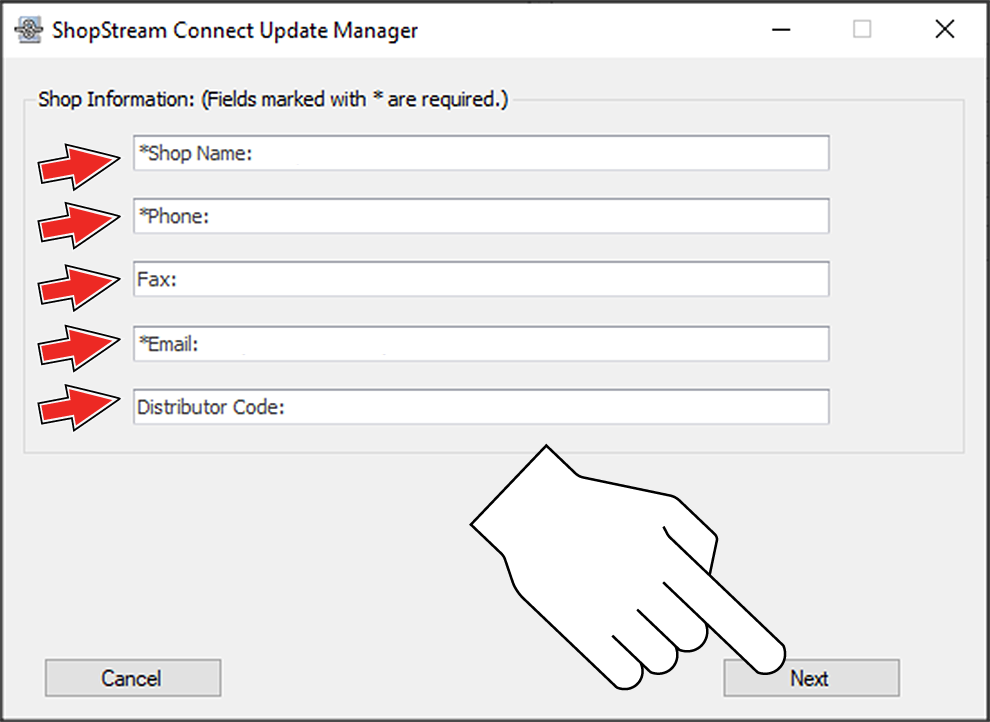
| 10. | Enter your shop information, then select Next. |
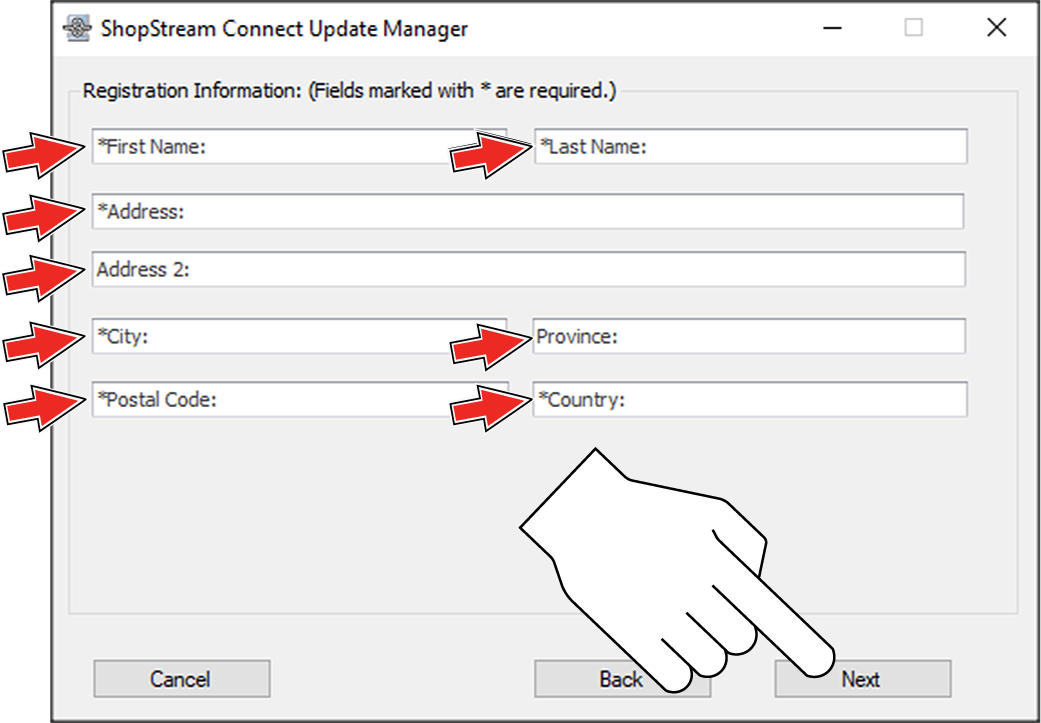
| 11. | Enter your contact information, then select Next. |
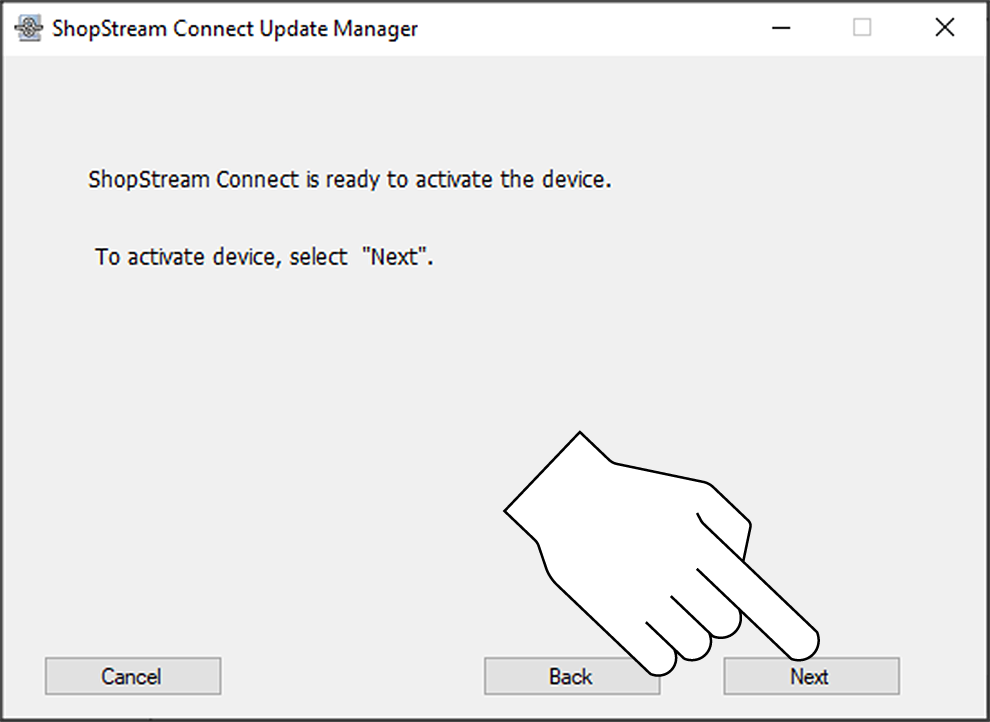
| 12. | The “Activation" confirmation screen is displayed, select Next to confirm installation. |
| 13. | The “Activation Confirmed” screen is displayed, select Finish to complete the installation. |
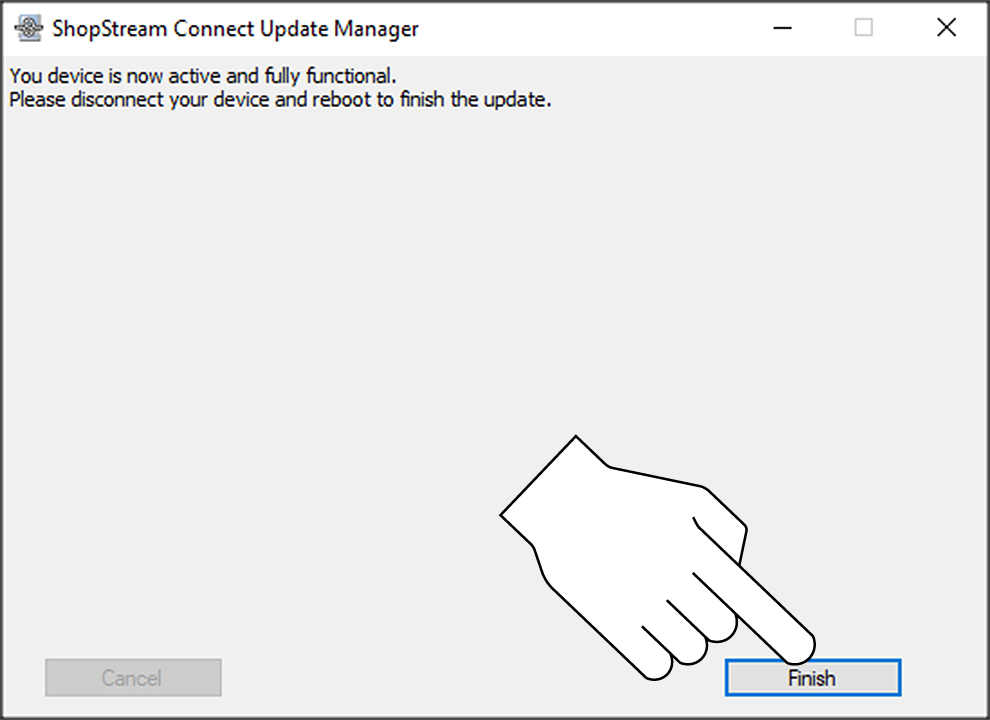
| 14. | Disconnect the USB cable and reboot the diagnostic tool. |
Your diagnostic tool is ready to use!