Snap-on Cloud - New User Setup
If you are a new user, follow these steps to register and
create a new account:
Account setup is only required one time.
|
1.
|
The diagnostic tool must be connected to a Wi-Fi network, see the Wi-Fi Setup section in your diagnostic tool user manual. |
|
2.
|
Write down the Serial Number, PIN and Code that are displayed when the device connects to the Wi-Fi network, or leave the screen displayed. Registration information can also be found in the Tools menu. |
The PIN and Code numbers will change each time you view the Snap-on Cloud Get Connected screen; this is normal. Any set of PIN and Code numbers displayed may be used to register.
|
3.
|
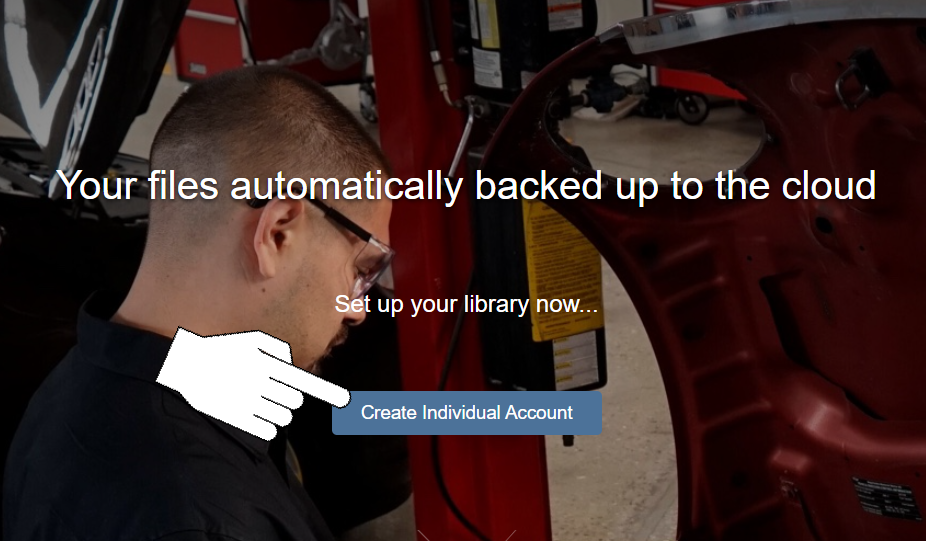
Using a mobile device or PC, visit https://ALTUSDRIVE.com and select Create Individual Account from the Login screen. |
|
4.
|
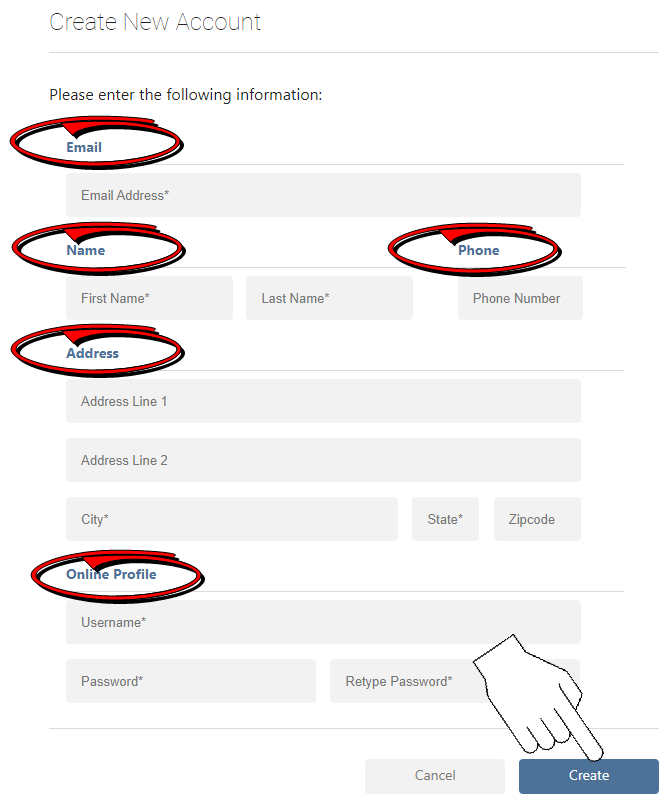
Enter the required information and create a Username and Password, then select Create. |
|
5.
|
At the “Success” confirmation screen, select Done. |
|
6.
|
Log in using your Username and Password. |
|
7.
|
Answer the security questions, then select Submit. |
|
8.
|
From Technician Profile Manager select the Device Management tab. |
|
9.
|
Select Add Device, then enter your Serial Number, PIN, Code, and Device Name and select Save when done. |
|
10.
|
Log out of Profile Manager, then select the ALTUS Home Page browser tab to get started. |
|
11.
|
Turn the diagnostic tool off, and then back on. |
Your diagnostic tool is now registered to your Snap-on Cloud online account. Code scan reports will be automatically sent (only when connected to Wi-Fi) to your online account from the diagnostic tool.
If the device is not connected to a Wi-Fi network when the code scan is performed, the report will not be sent to your Snap-on Cloud account. Wi-Fi connection is required to upload the report.