Using an External Monitor
These instructions are intended only as a guide. Refer to Windows user guide information for details beyond this content. Windows menus and navigation may be different than the information shown here.
 Using an External Monitor
It is recommended to connect your diagnostic tool to the optional docking station, and connect the external monitor to the docking station.
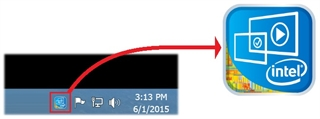
To setup the monitor, open the Intel HD Graphic Options menu, (use either method below):
| ● | Right click (long press) on the Windows desktop |
| ● | Click on the Intel HD Graphic Taskbar Icon (blue box with gold lower left corner) |
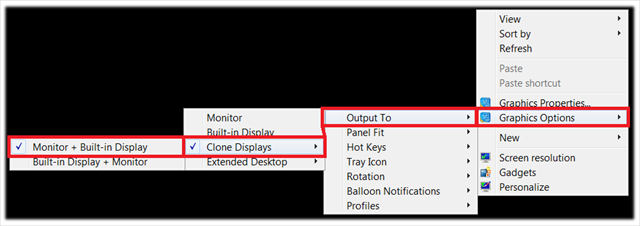
Option Setting 1 - Graphic Options > Output To > Clone Displays > Monitor > Built-in Display
This sets the external monitor as the primary display and forces the tool display to either match the monitor display ratio with black bars or a stretch/compress if necessary.
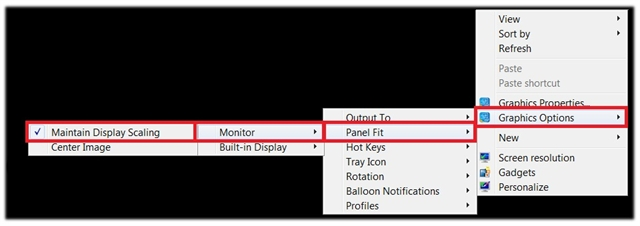
Option Setting 2 - Graphic Options > Panel Fit > Monitor > Maintain Display Settings
This sets the monitor’s ratio as the primary display ratio
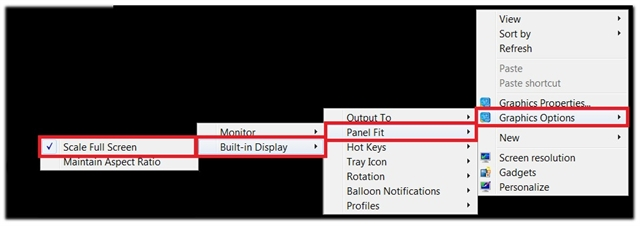
Option Setting 3 - Graphic Options > Panel Fit > Built-In Display > Scale Full Screen
This forces the tool display to either match the monitor display ratio with a stretch or compress if necessary. No black bars will be visible.
Advanced Diagnostic Center
VERUS Edge Display Setting
If you experience erratic monitor display behavior when redocking the VERUS Edge display unit to the docking station, use the following instructions to correct the display.
Erratic display behavior may include:
| ● | stretched or compressed screen |
| ● | screen not visible |
| ● | incorrect aspect ratio |
| 1. | From the Windows® desktop taskbar, click on the Intel® HD Graphic Icon, to open the graphics settings menu. |
| 2. | From the graphics settings menu options select Graphic Options > Panel Fit > Monitor > Maintain Display Scaling |
| 3. | Then select Maintain Display Scaling, and check the options box. |
| 4. | Exit the menu. |
The display setting will be retained, once set.
Using an External Monitor with VERUS and VERUS Wireless
Power on the display device Connect the 2nd monitor Tap on Start Open Control Panel Open Display Click on the Settings tab Click on Advanced button Click on the Intel® Extreme Graphics 2 for Mobile tab Click on the Graphics Properties button Under Multiple Display click on the bubble next to Twin
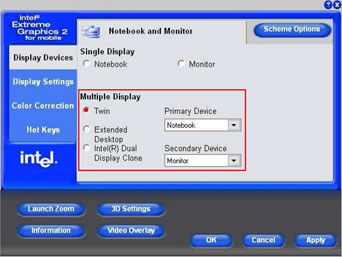
Click on the blue Apply in the bottom right corner Click on OK in the Confirm the Desktop Change pop-up window
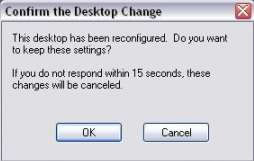
Click on the blue OK The second monitor should now be working