Locking PIDs (to always display at top)

Use the Lock/Unlock icon to hold selected lines of the data in place and prevent them from scrolling, or to release previously locked lines of data. Up to three lines of data may be held at a time. This feature allows you to position related parameters together, making it easier to monitor their values and spot inconsistencies.
Locked parameters display as the top frames on the main body of the display screen, as well as at their usual position within the data list. A lock icon appears to the left of the parameter name to indicate it is locked.
| 1. | Highlight the parameter to be locked. |
| 2. | Select the Lock/Unlock icon on the toolbar to lock it. |
A copy of the locked parameter is now shown at the top of the data list, and a lock icon appears alongside the parameter name.
| 3. | Highlight and select additional parameters to lock. |
Up to three parameters can be locked at a time. Once locked, a parameter remains locked until it is manually unlocked, or communication with the vehicle is stopped.
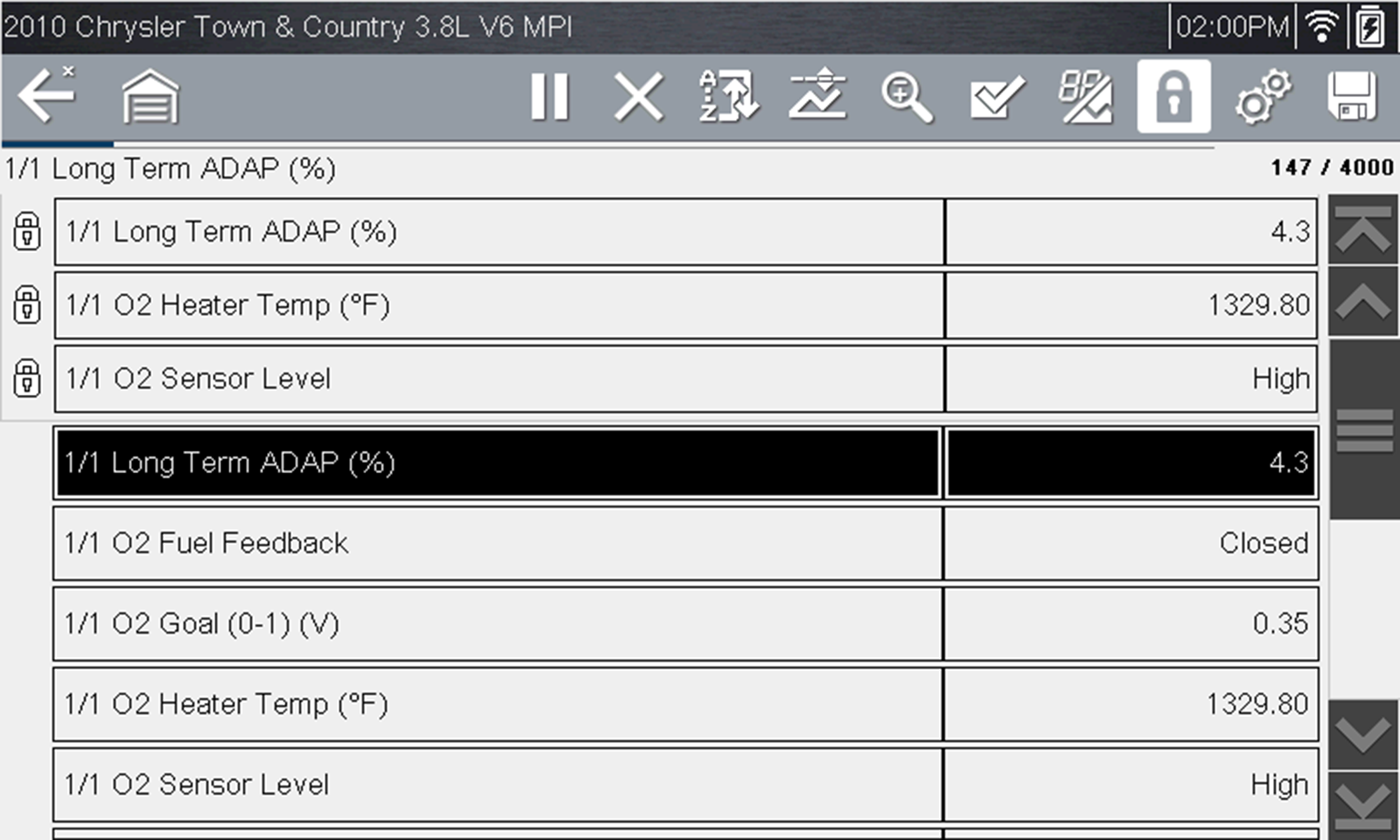
Locked parameters
If three parameters are locked, one of them must first be unlocked before another parameter can be locked.
Unlocking PIDs
| 1. | Scroll through the data list and highlight the parameter to be unlocked, or released. |
| 2. | Select the Lock/Unlock icon on the toolbar. |
The released parameter and the lock icon disappear from the list at the top of the data list.
| 3. | Repeat Step 1 and Step 2 to release other parameters if needed. |