Selecting PIDs to Display (custom display)

The Custom Data List icon on the toolbar is used to select which PIDs to display.
Minimizing the number of PIDS displayed allows you to focus on any suspicious or symptom‑specific data parameters. You can add or remove most PIDs from the list, as certain vital PIDs may not be removed. These appear in gray at the top of the list along with a lock icon, and they cannot be selected.
Limiting the number of parameters that display to those that apply to a particular situation results in a faster data refresh rate, and reduces the amount of memory used for saved files.
| 1. | Select the Custom Data List icon on the toolbar. |
The data selection screen displays and selection icons appear. Check marks to the left of the parameter description indicate which parameters are selected for display.
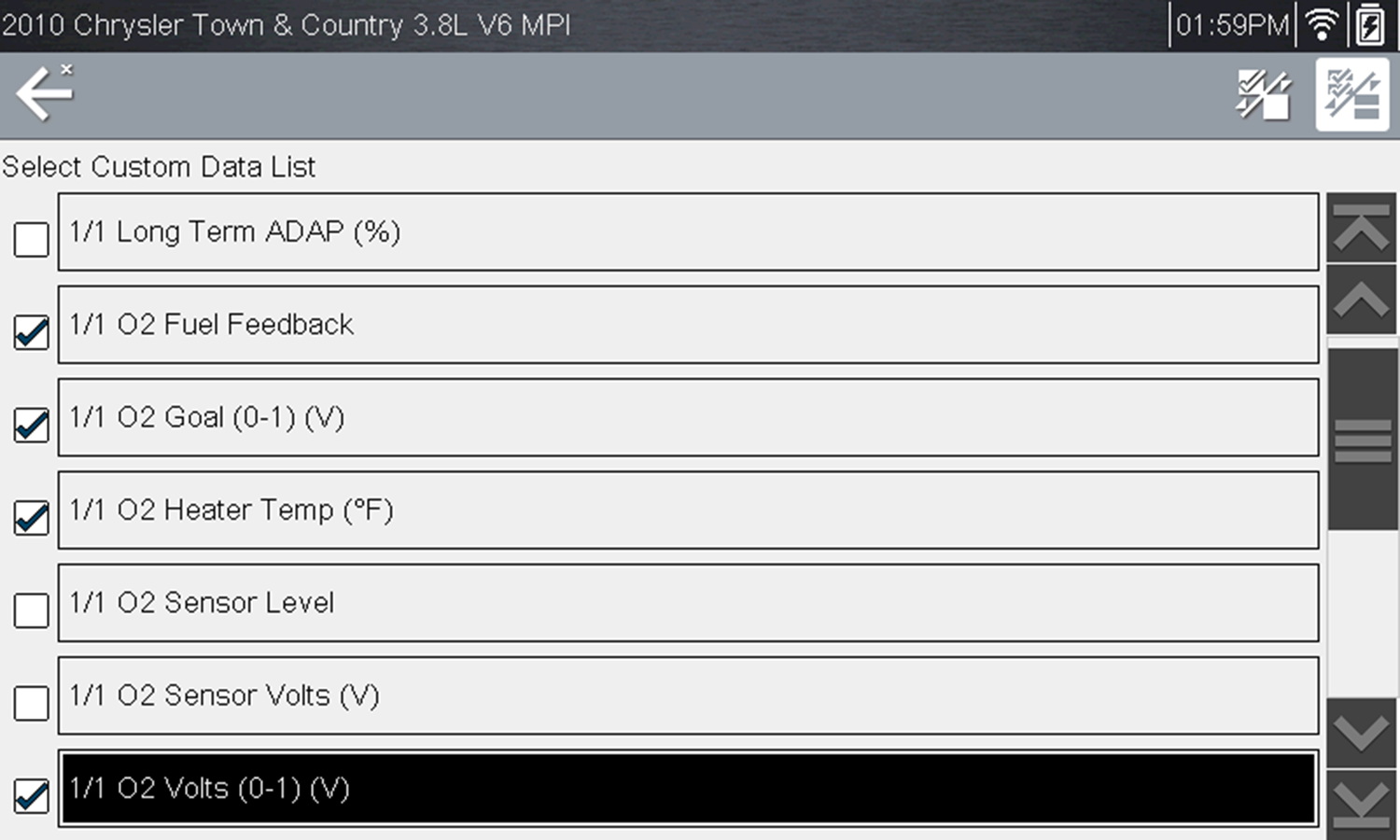
Data custom PID selection
The toolbar icons provide options for selecting and deselecting parameters to include or remove from the custom data list:
|
Icon |
Description |
|
|
Select/Deselect - hide or display individual PIDs in the list |
|
|
Select All/Deselect All - hide or display all PIDs in the list. |


| 2. | Create a custom data list by selecting (check mark) the parameters to include. |
| 3. | Select Back to display the updated data list. |