Setting up Security Link Access for Stellantis® Vehicles
To obtain secured access to FCA International vehicles:
| ● | Subscribe to Snap-on Total Shop Solutions (see below). Snap-on Total Shop Solutions will setup and manage your FCA International Security Link account for you. |
| – | Accept the Privacy agreement |
| – | Provide and validate your e-mail address |
| – | Submit payment to activate your Snap-on Total Shop Solutions subscription. |
Setting Up an FCA International Account
|
Stellantis |
|
|

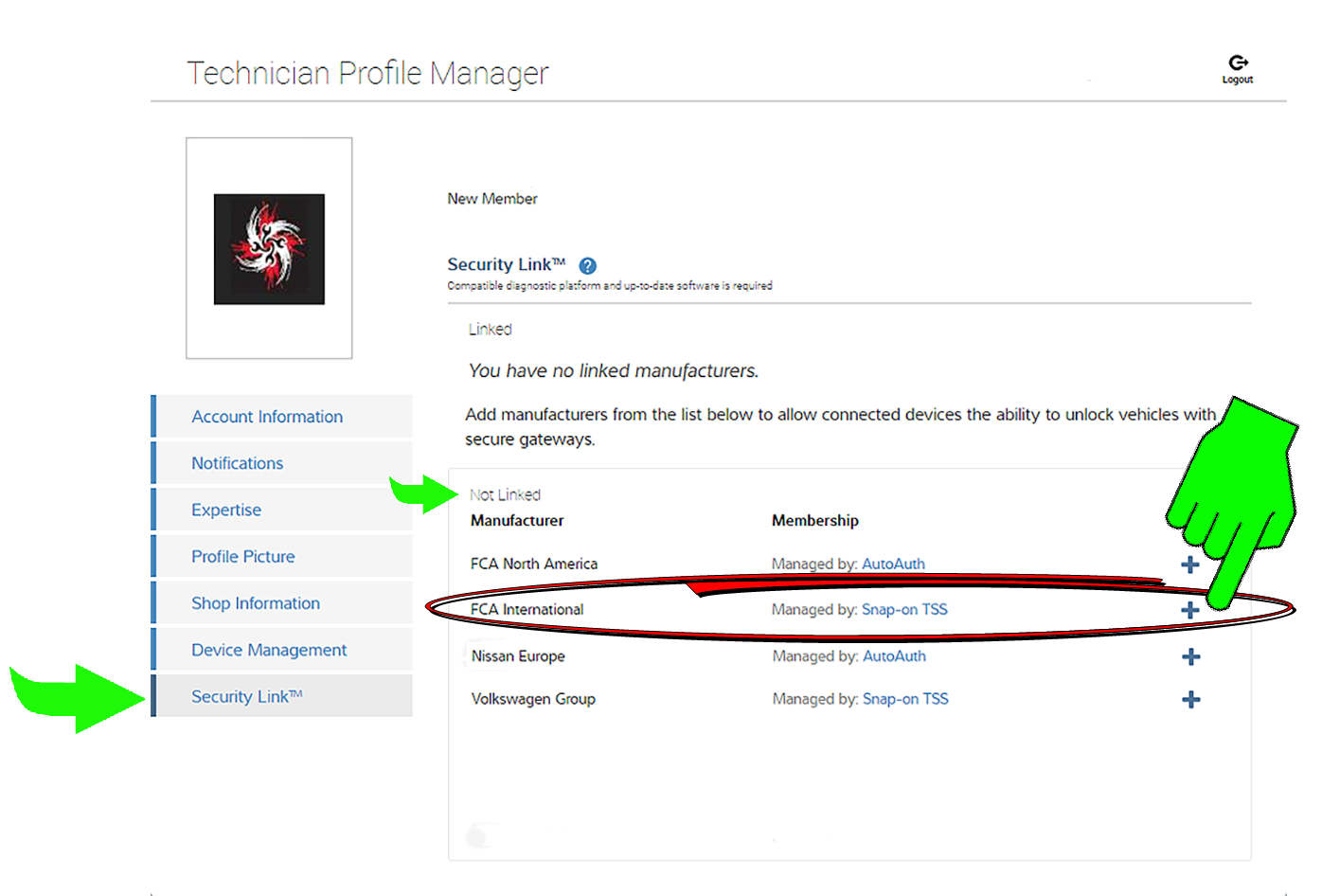
| 1. | From your Technician Profile (ALTUSDrive.com) select the Security Link tab. |
| 2. | From the "Not Linked" section, click the "+" icon next to FCA International. |
Note -Once you have setup the account, it will display in the "Linked" section.
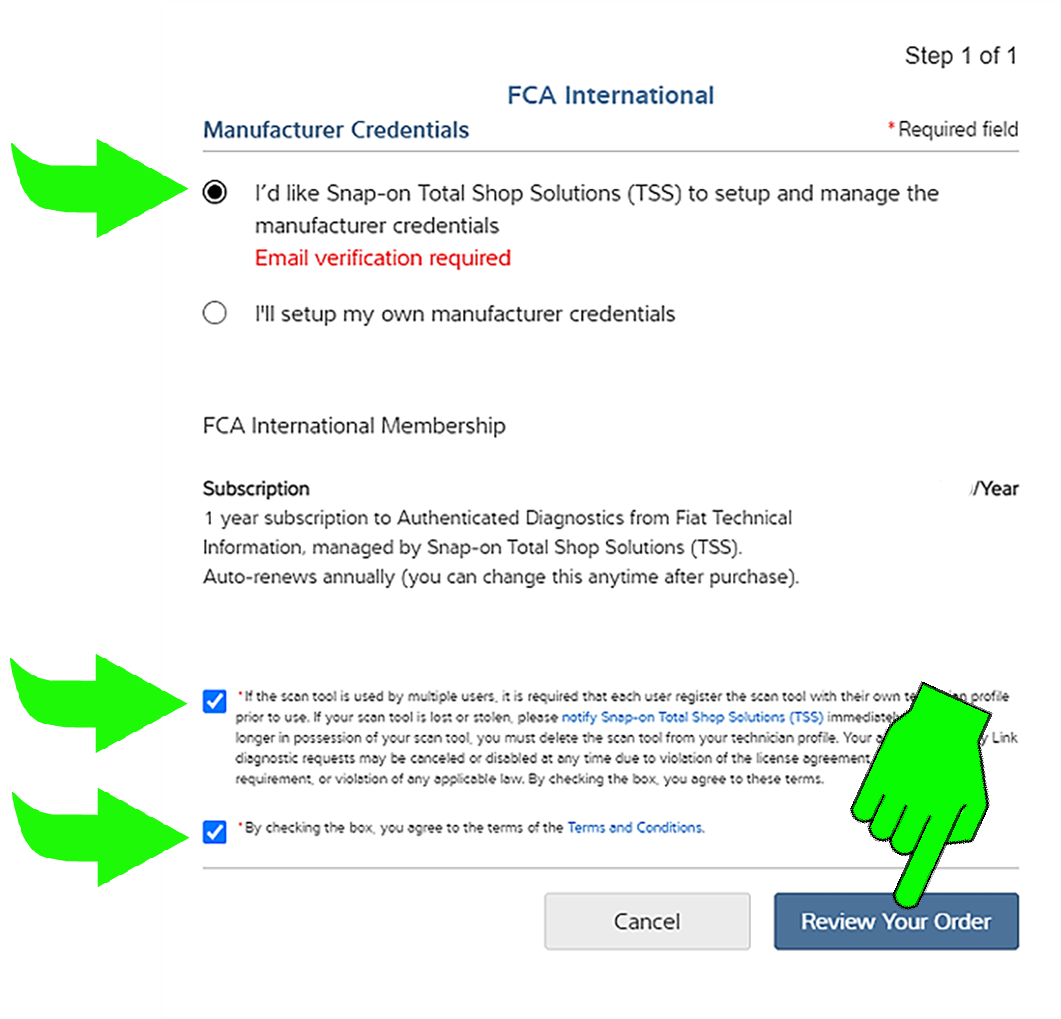
| 3. | Select I’d like the Snap-on Total Shop Solutions (TSS) to setup and manage the manufactures credentials. |
| 4. | Read the agreement terms and check both boxes, then select Review Your Order. |
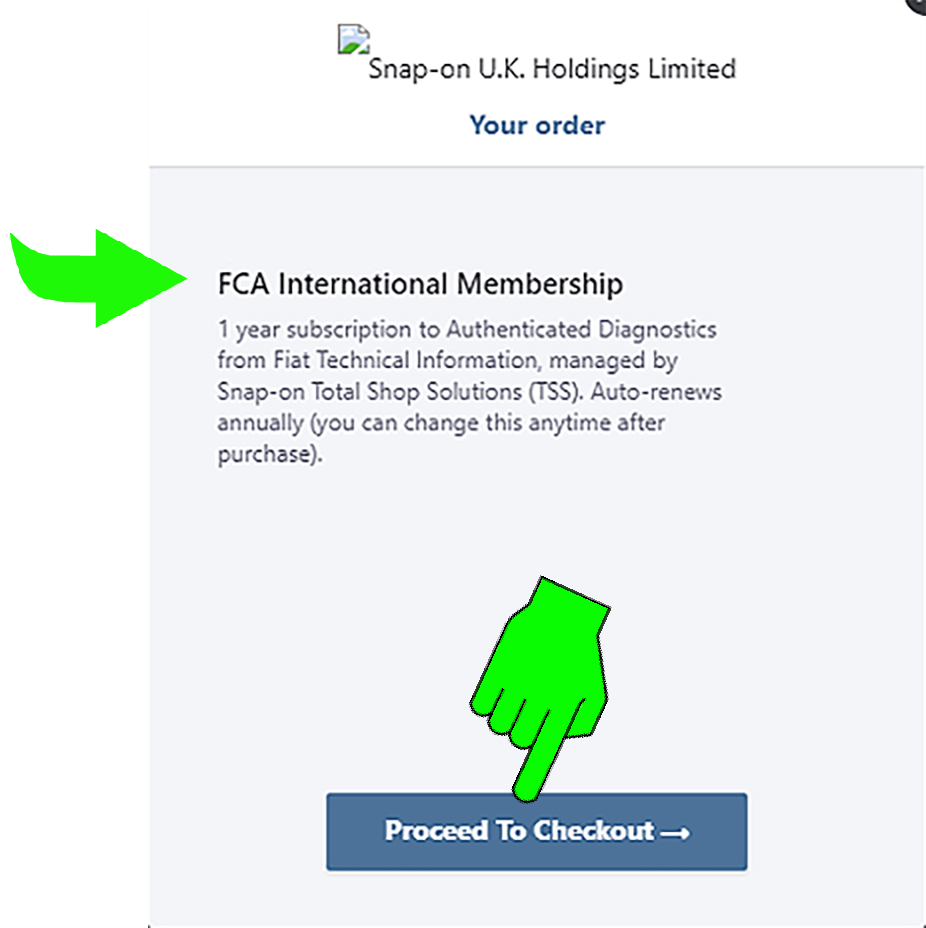
| 5. | Select Proceed to Checkout. |
A valid e-mail address is required. Follow the directions to confirm your e-mail address.
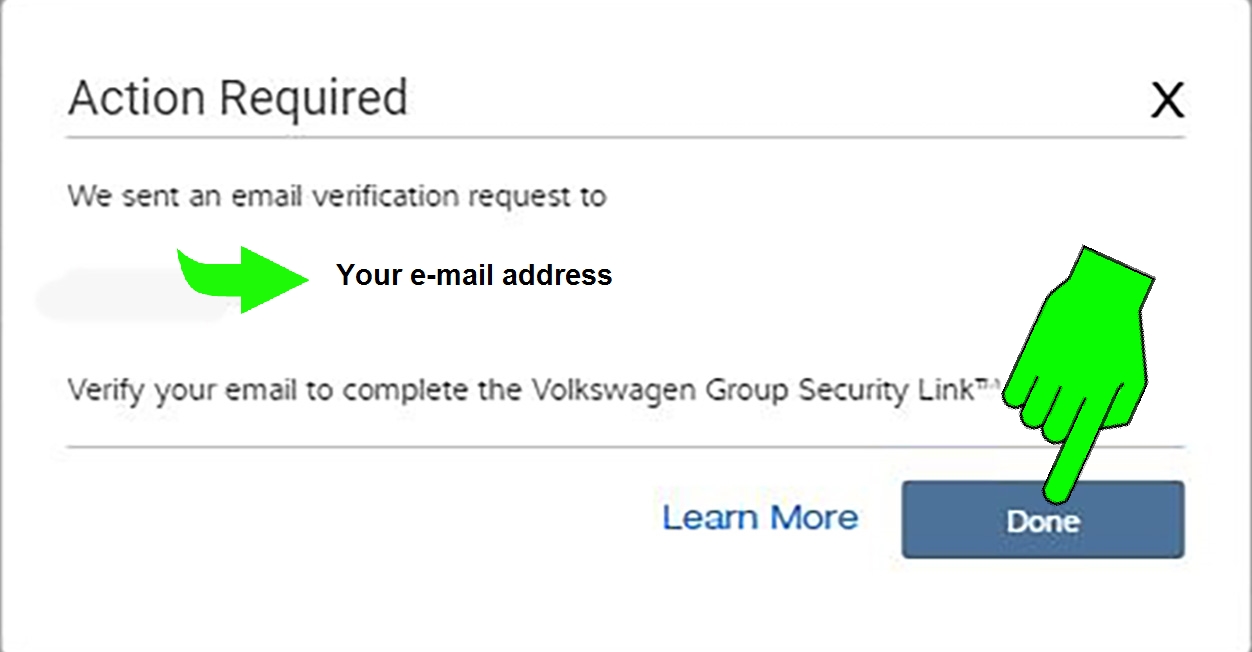
If you did not receive a confirmation e-mail:
| – | check your spam folder or other e-mail folders |
| – | (if needed) change your e-mail address to a valid address. To change your email address, click the Account Info tab and enter a new e-mail. Then follow the directions to confirm your e-mail address. |
| 6. | Follow the prompts to review your order details, and enter your account and payment information. |
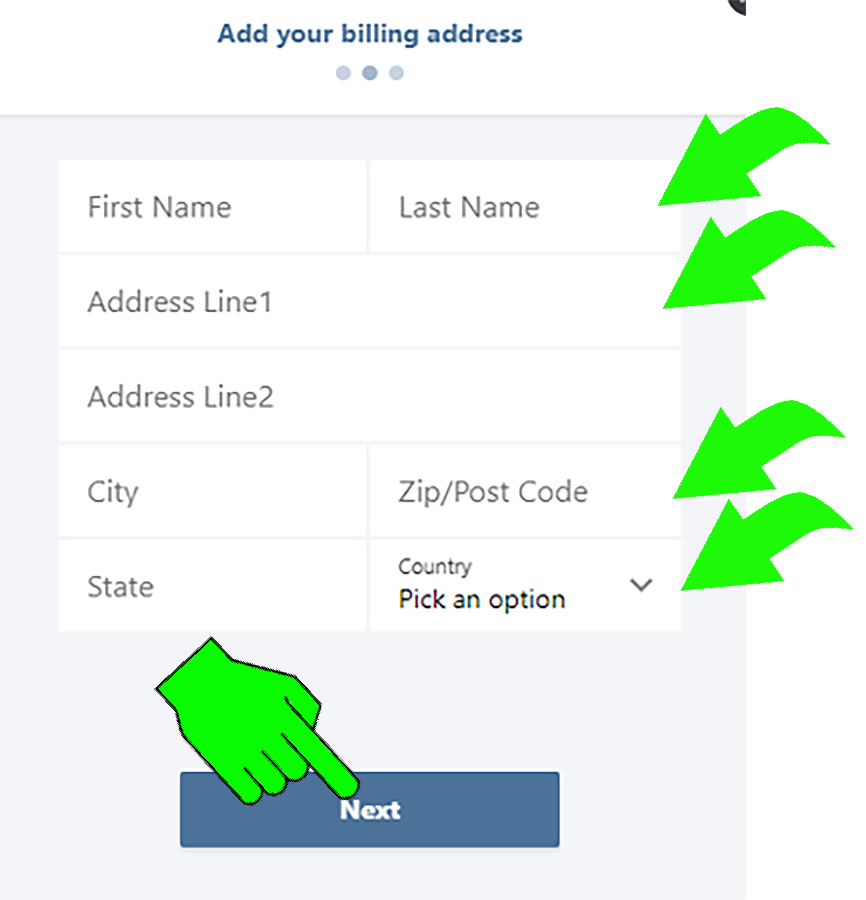
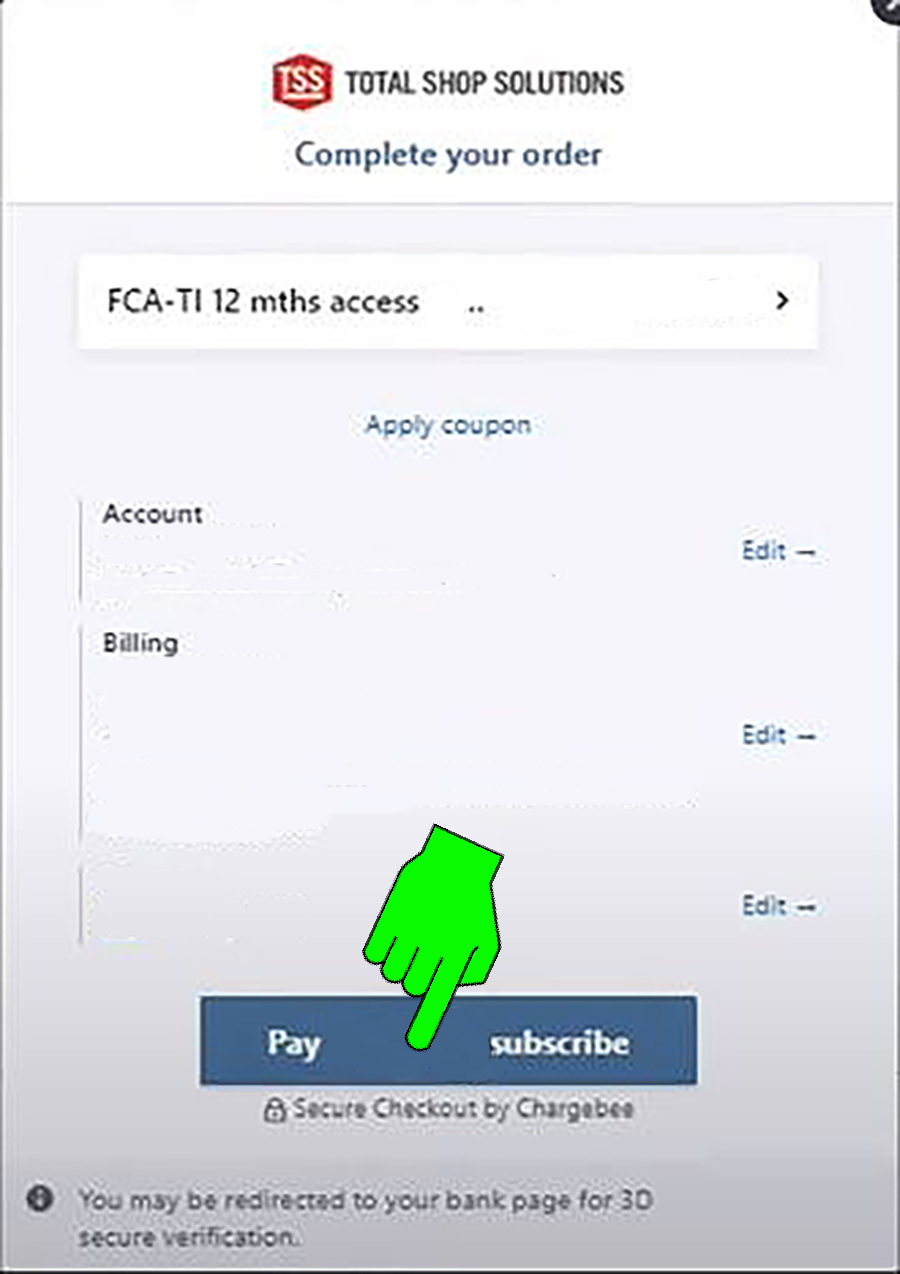
| 7. | When finished click Pay/Subscribe to complete your order. |
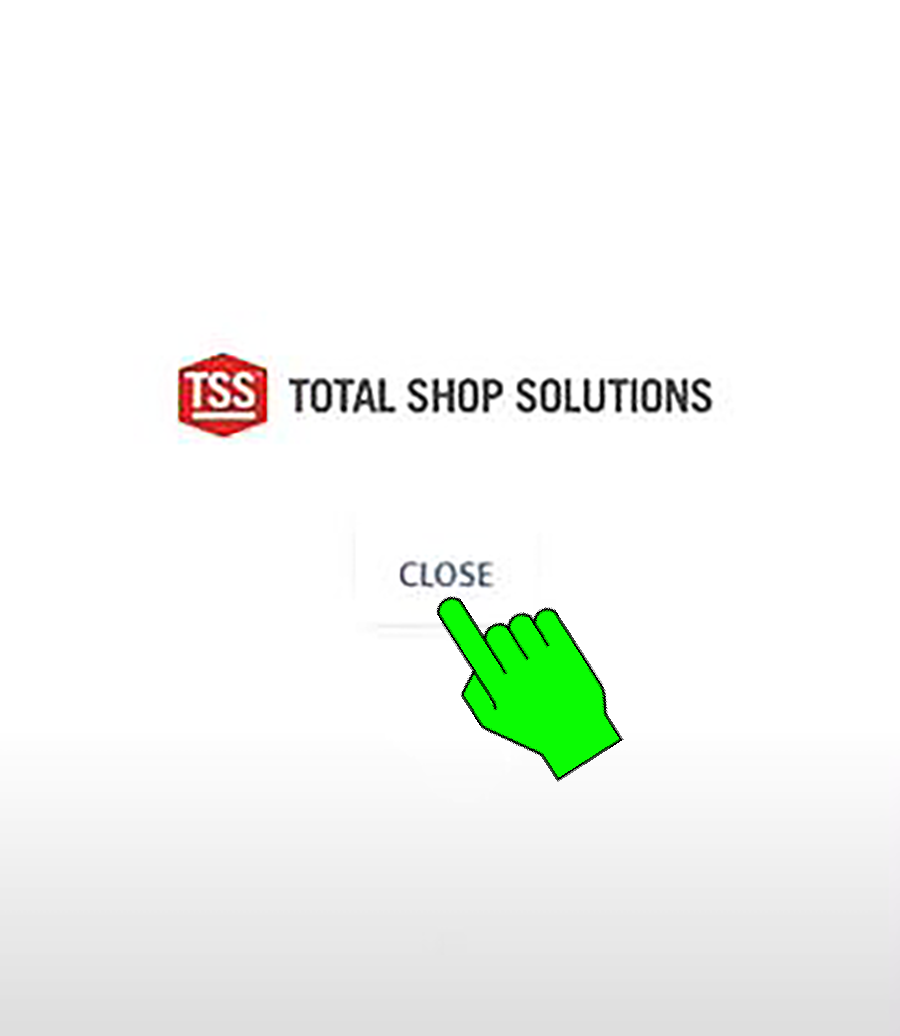
| 8. | Close the subscription window. |
| 9. | Close all open applications on your diagnostic tool and restart it. |
Your FCA International Security Link account is ready to use.