Setting up Security Link Access for Renault® Group Vehicles
To obtain secured access to Renault® Group vehicles, you must:
| ● | Enter your profile information |
| ● | Provide and validate your e-mail address |
| ● | Create a Personal Account Number (PAC) |
| ● | Accept the Privacy agreement |
| ● | Link your Renault® Group credentials to your Technician Profile |
Setting Up a Renault® Group Account
|
Renault® Group |
|
|

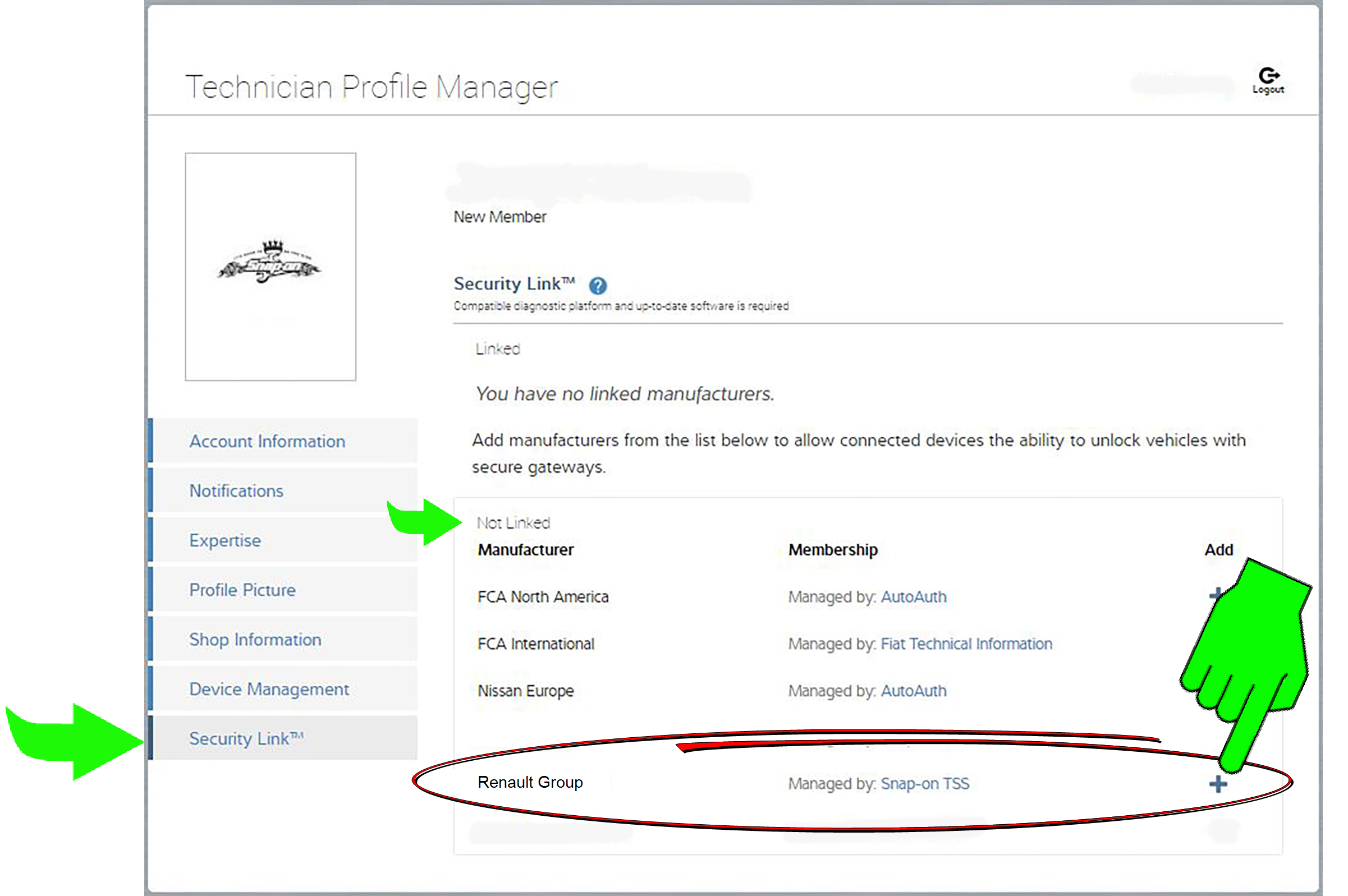
| 1. | From your Technician Profile (ALTUSDrive.com) select the Security Link tab. |
| 2. | From the "Not Linked" section, click the "+" icon next to Renault® Group Vehicles. |
Note -Once you have setup the account, it will display in the "Linked" section.
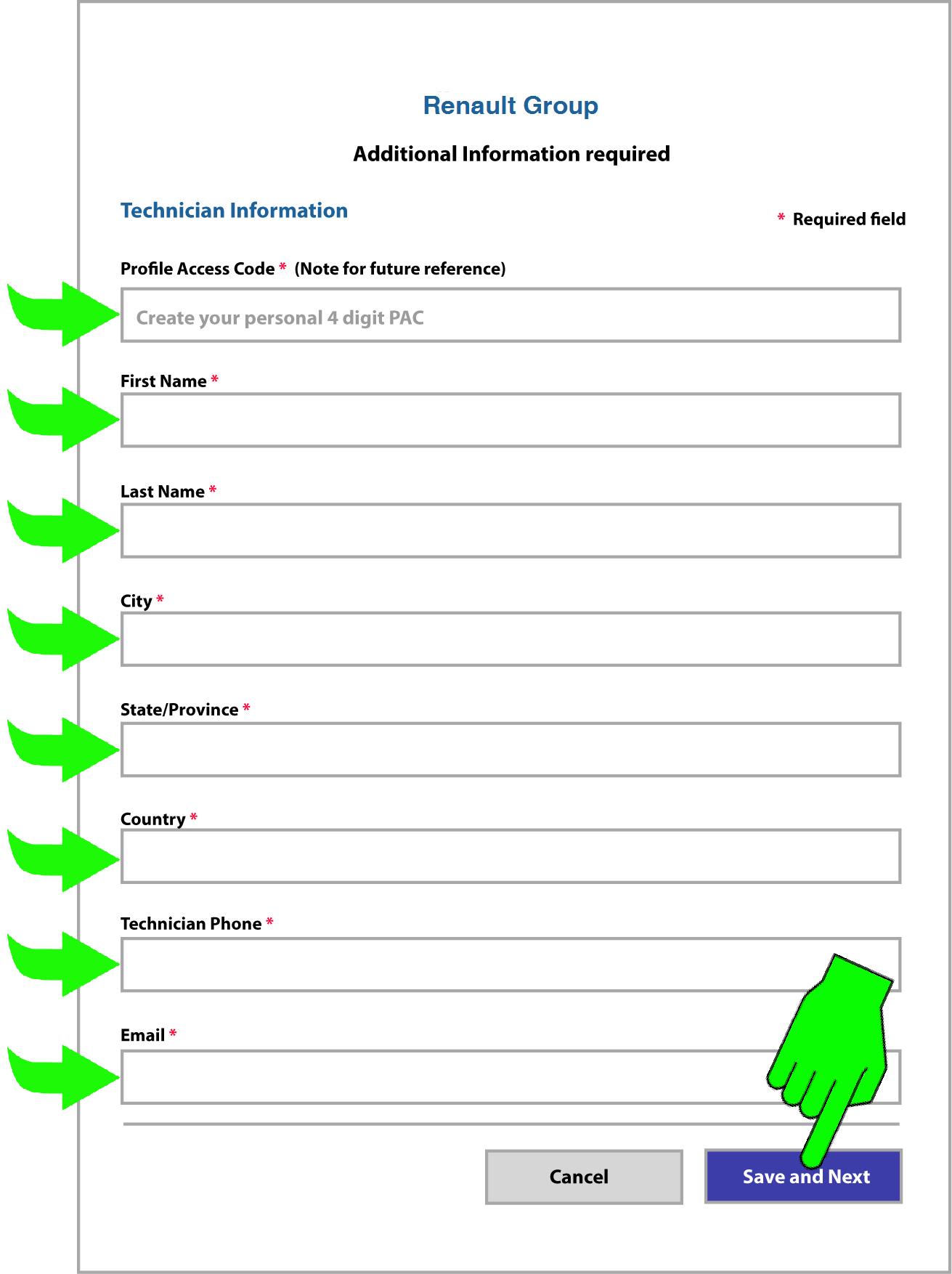
| 3. | Create a Profile Access Code and enter all the profile information required to setup your authorization, then click Save and Next. |
Remember your Profile Access Code, you will need to enter it (on your diagnostic tool) each time you access a secured Renault® Group vehicle.
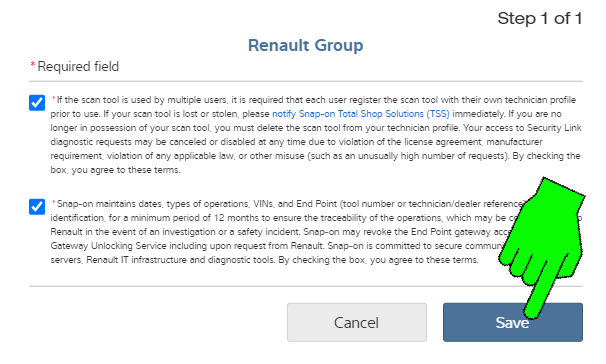
| 4. | Read the privacy policy, scroll to the end and check the "Acceptance" boxes and then click Save. |
| 5. | A valid e-mail address is required to setup a Renault® Group Account. Follow the directions to confirm your e-mail address. |
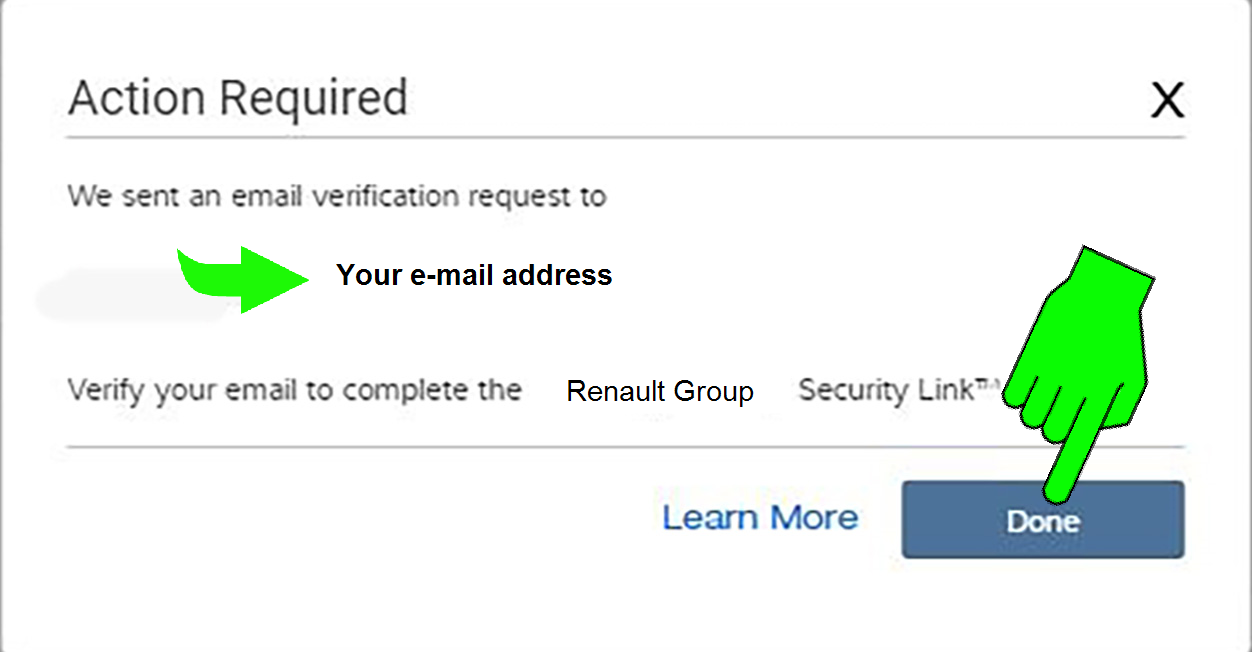
If you did not receive a confirmation e-mail:
| – | check your spam folder or other e-mail folders |
| – | (if needed) change your e-mail address to a valid address. To change your email address, click the Account Info tab and enter a new e-mail. Then follow the directions to confirm your e-mail address. |
| 6. | After your e-mail is confirmed ‘Renault® Group’ will now be displayed in the "Linked" section of your Technician Profile (Security Link Tab), indicating your account is authorized. |
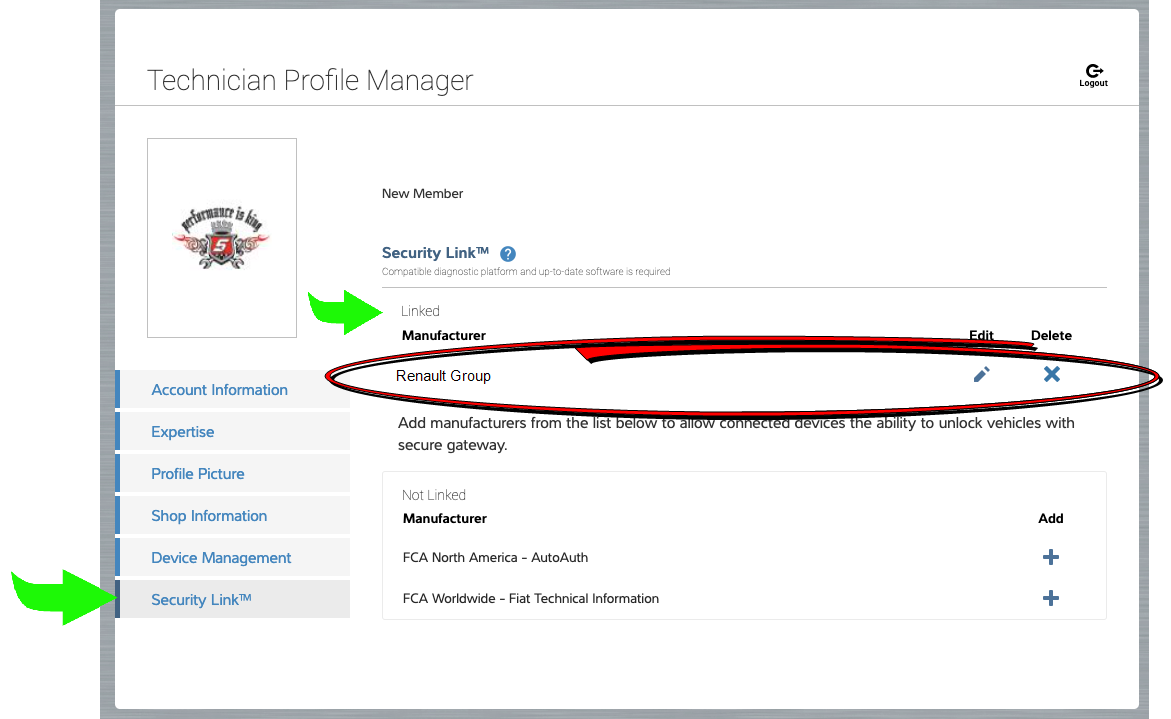
After you link your Renault® Group account to your Snap-on Technician Profile, you can use your authorized diagnostic tool to scan/access secured vehicle systems.
 Scanning a Secured Renault® Group Vehicle
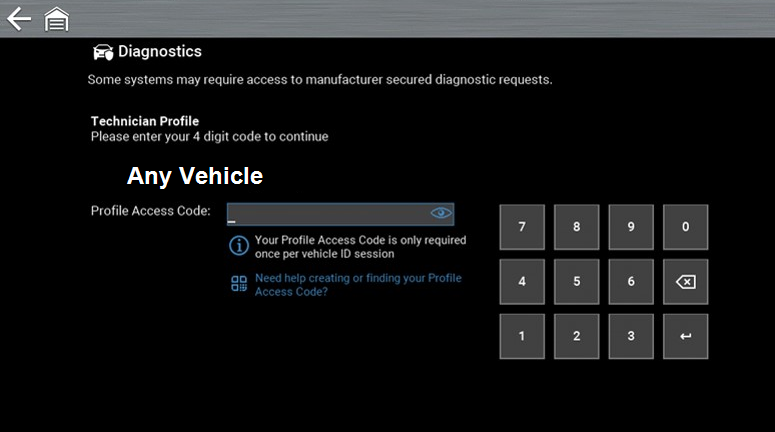
When you use Scanner to access a secured system you will be prompted to enter your Profile Access Code.
Make sure your authorized diagnostic tool is connected to a strong stable Wi-Fi network. Your authorized tool is listed on the Device Management tab in your Technician Profile.
REMEMBER Your Profile Access Code - Each time you connect to a secured Renault® Group vehicle, you will be prompted to enter it.
Typical Access Screens on Tool
ZEUS Tool Family
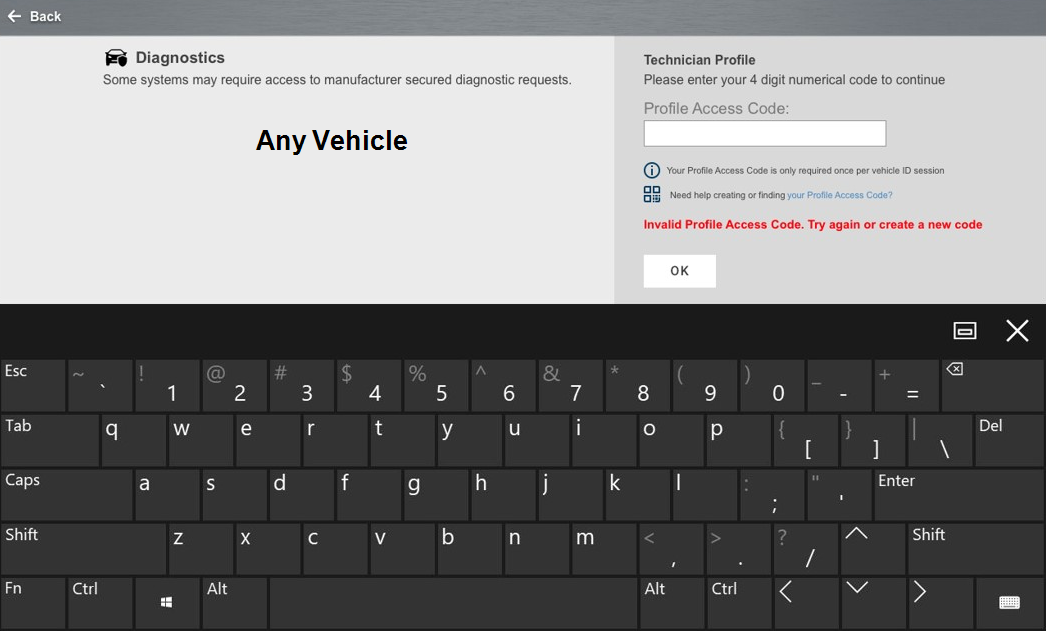
TRITON, APOLLO and SOLUS Tool Families
Changing/Resetting your Profile Access Code (PAC)
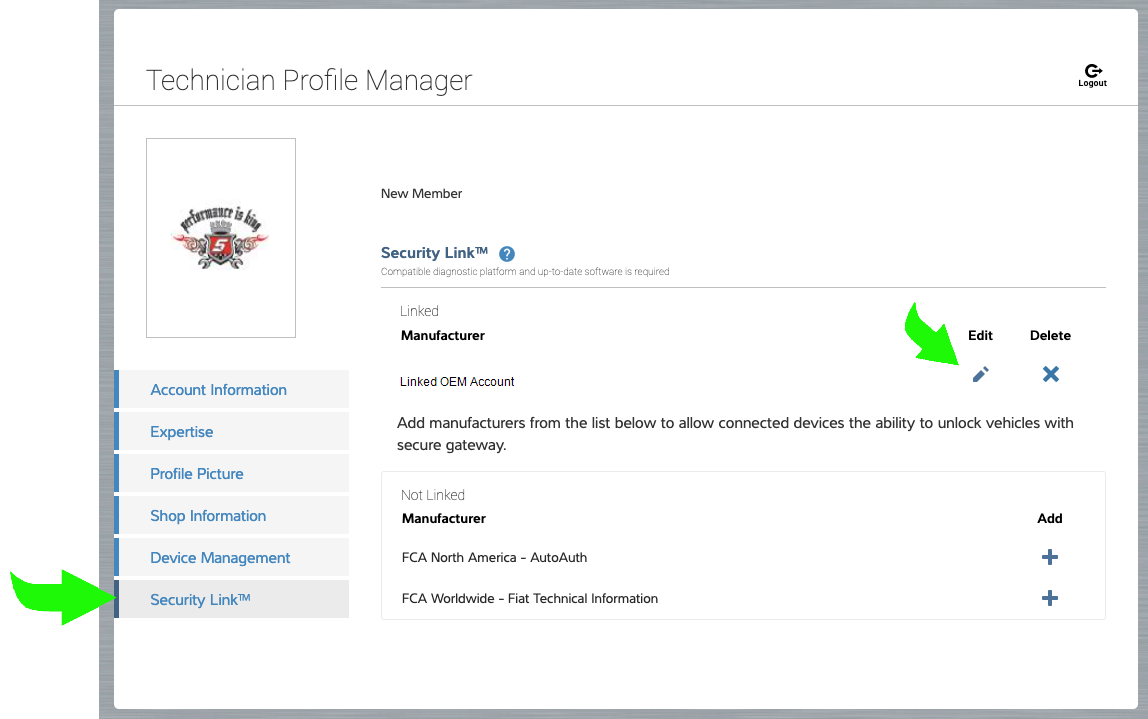
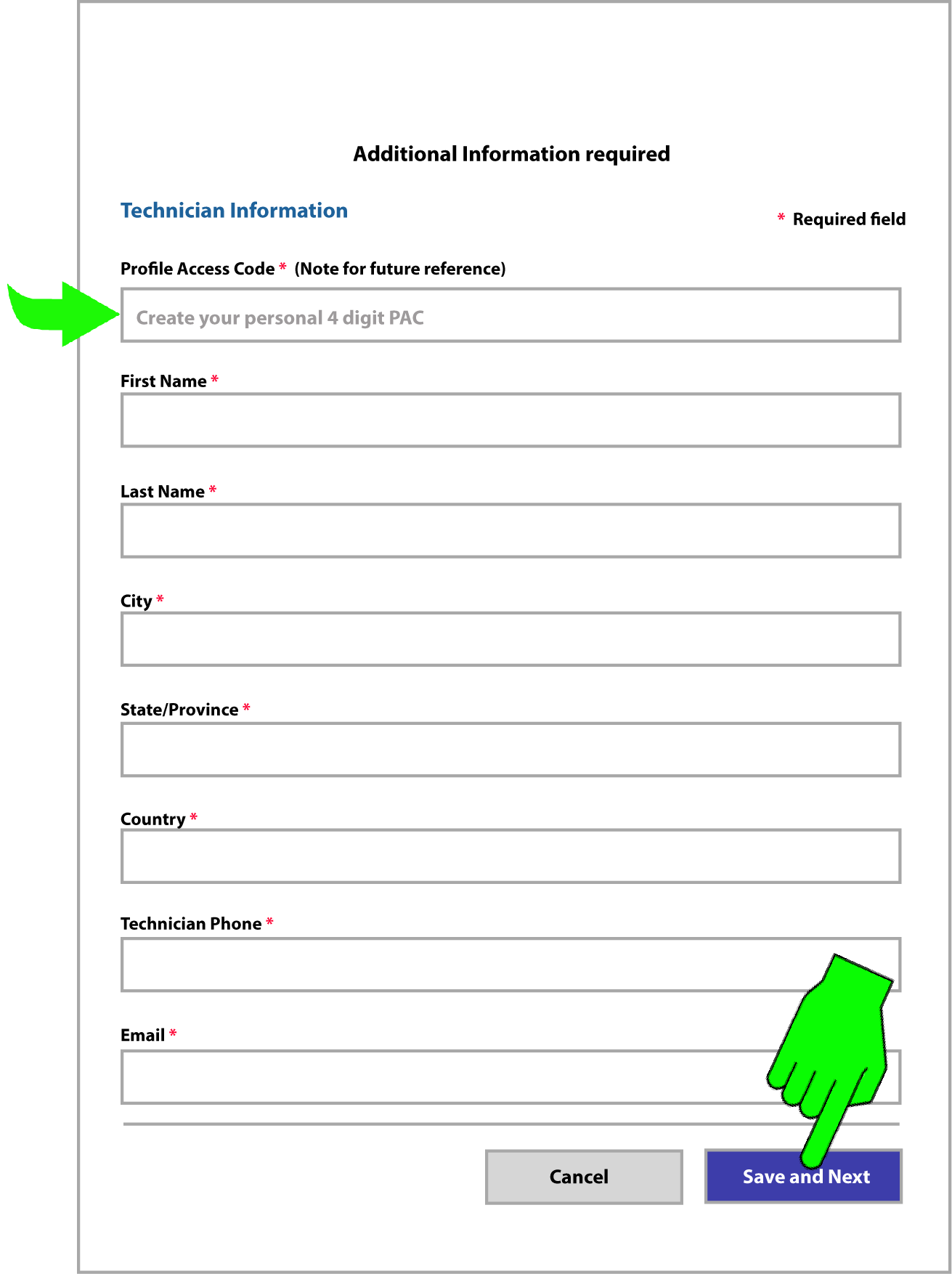
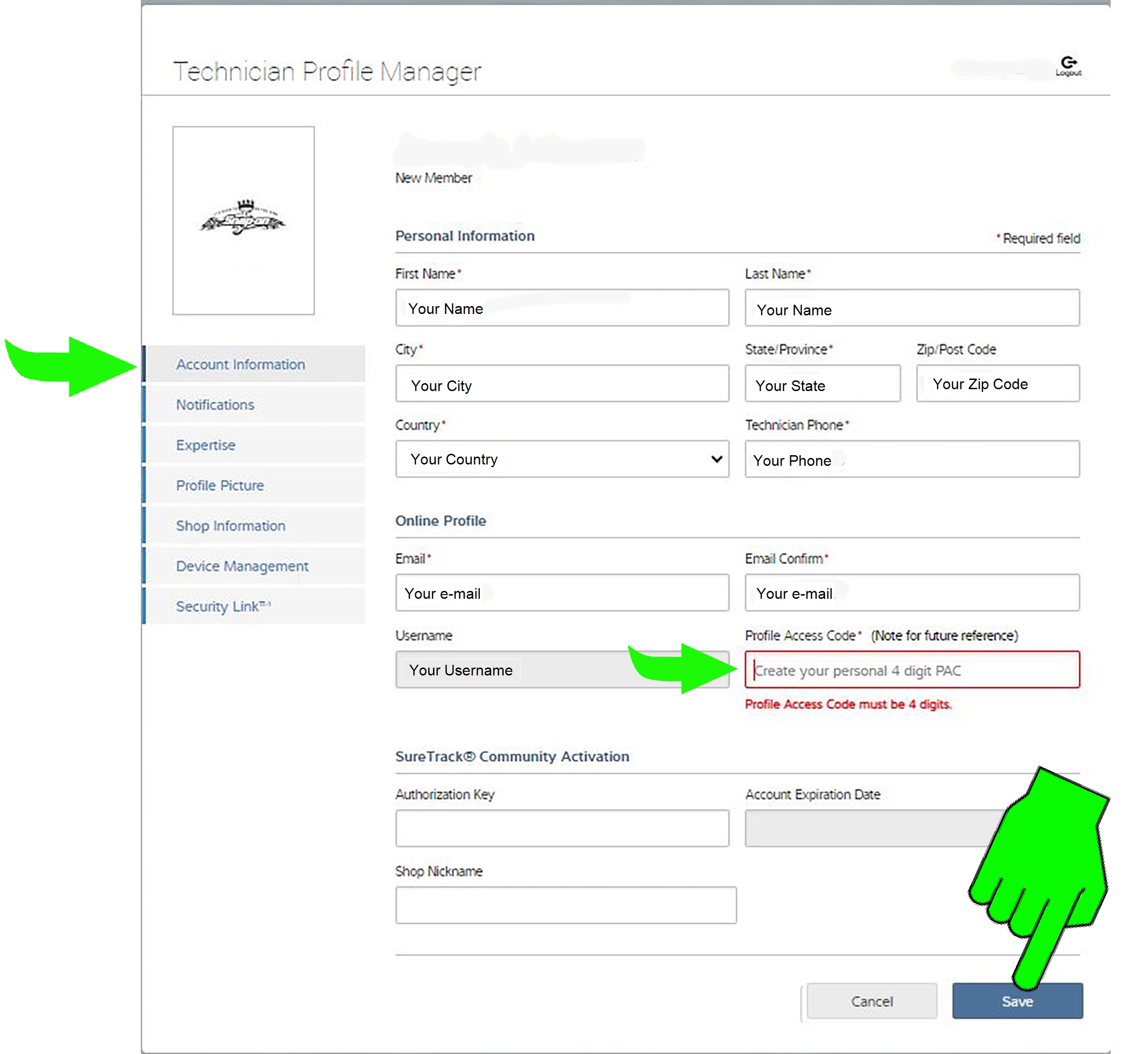
If you need to change your Profile Access Code, you can change it from the Account Information tab in your Technician Profile or from the Security Link tab by editing your linked OEM account (both ways are shown below).
Enter a new four digit code in the Profile Access Code field and click Save.
REMEMBER Your Profile Access Code - Each time you connect to a secured Renault® Group vehicle, you will be prompted to enter it.
Change PAC from Account Information tab
Change PAC from Security Link tab