Click on an image to expand, click again to reset size. Does not apply to all images/illustrations.
|
Category |
FAQ's |
||||||||||||||||||||||||||||||||||||
|---|---|---|---|---|---|---|---|---|---|---|---|---|---|---|---|---|---|---|---|---|---|---|---|---|---|---|---|---|---|---|---|---|---|---|---|---|---|
| Getting Started | |||||||||||||||||||||||||||||||||||||
| Accessories |
 Where do I get accessories for my tool? Where do I get accessories for my tool?
Visit your Snap-on website store, or contact your Snap-on representative. Also see Diagnostic Accessories |
||||||||||||||||||||||||||||||||||||
| Accessories |
Where do I get a screen protector and how do I install it?
Visit your Snap-on website store, or contact your Snap-on representative. NOTE - Screen protectors are not available for all models. |
||||||||||||||||||||||||||||||||||||
| Accessories |
Can I connect my diagnostic tool to an external monitor and keyboard (docking station)?
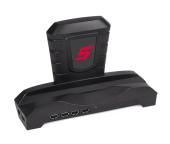
Visit your Snap-on website store, or contact your Snap-on representative, to purchase a ZEUS docking station. A docking station provides a convenient way to keep your diagnostic tool powered up all day, and extra connections for up to four USB devices and an HDMI video out connector to display the screen on an external monitor.
|
||||||||||||||||||||||||||||||||||||
| Battery / Device Power |
Can I operate the tool without a battery pack?
The diagnostic tool will operate without the battery installed, however it is not advisable to operate without a charged battery installed. |
||||||||||||||||||||||||||||||||||||
| Battery / Device Power |
How do I charge the battery pack in my diagnostic tool?
Battery charging occurs whenever the AC power supply is connected to a live power source and the diagnostic tool. |
||||||||||||||||||||||||||||||||||||
| Battery / Device Power |
How do I get a new battery pack?
Visit your Snap-on website store, or contact your Snap-on representative. Only use the manufacturer recommended original equipment replacement battery pack. |
||||||||||||||||||||||||||||||||||||
| Battery / Device Power |
How do I know if the battery in my diagnostic tool is charging?
See "Battery Pack Charging" in Battery Pack See the "Battery Pack Charging" section in the ZEUS User Manual. |
||||||||||||||||||||||||||||||||||||
| Battery / Device Power |
My tool won't turn on /boot up, what do I do?
Make sure you are using a known good power source, and then try the following:
If you are still experiencing difficulties, contact customer support Phone
|
||||||||||||||||||||||||||||||||||||
| Battery / Device Power |
How can I “recondition” the battery pack ?
The following process can be used to “recondition” the battery pack Depending how many “valid” recharge cycles the battery has previously gone through, it should be approximately between 80% and 100% of its original capacity once reconditioned.
|
||||||||||||||||||||||||||||||||||||
| Component Testing |
Where can I get step-by-step help when testing a component with a meter? / What is the Guided Component Tests function for?
= Home Screen > Guided Component Tests Detailed instructions and reference information are provided to guide you through the testing process, from locating the component, to selecting the appropriate test, showing test lead connections, and illustrating electrical connector and pin configurations. In addition, the test meter is preconfigured for the selected test to save you time. Test results, including waveform examples, procedures, tips, and specifications may also be provided. |
||||||||||||||||||||||||||||||||||||
| Component Testing | |||||||||||||||||||||||||||||||||||||
| Vehicle Data Connection | |||||||||||||||||||||||||||||||||||||
| Vehicle Data Connection | |||||||||||||||||||||||||||||||||||||
| Vehicle Data Connection | |||||||||||||||||||||||||||||||||||||
| Vehicle Data Connection | |||||||||||||||||||||||||||||||||||||
| Vehicle Data Connection |
Can I use a USB cable to connect my Compact Scan Module (CSM) to the display?
The USB jack on the CSM is only used to provide power to the CSM from the diagnostic tool during a CSM firmware update. The USB jack is not for vehicle communication. |
||||||||||||||||||||||||||||||||||||
| Vehicle Data Connection |
Can I connect to an Ethernet equipped vehicle?
Ethernet equipped vehicles use the standard 16 pin OBD-II diagnostic link connector (DLC) for diagnostic tool connection, however the diagnostic tool and/or compact scan module (CSM) must be designed to support Ethernet communication.
Snap-on supports Ethernet communication for select Jaguar, Land Rover and Volvo models. Supported Models as of 2021:
|
||||||||||||||||||||||||||||||||||||
| Device Features |
Can I connect to OBD-I European vehicles?
Depending on your tool and the vehicle, you may be able to use the OBD-I European Vehicle Cable Adapter Kit. Contact your Snap-on representative for information. |
||||||||||||||||||||||||||||||||||||
| Device Features |
What are Snap-on Information Services?
Depending on your device, market and subscription, information services will vary and /or not be available. Performance varies depending on your wireless network equipment and ISP. The following integrated information services provide up-to-date service/repair information directly to your diagnostic tool, via wireless network connection from our Snap-on Web Services Network:
If your access to these services has expired, or you have received messages about upcoming software upgrades or pending expiration, contact your sales representative. |
||||||||||||||||||||||||||||||||||||
| Device Features |
What are the USB jacks and other ports on the side of the tool for?
|
||||||||||||||||||||||||||||||||||||
| Device Features | |||||||||||||||||||||||||||||||||||||
| Device Serial Number |
Where do I find my serial number?
The diagnostic tool serial number is displayed on the Get Connected screen. Typical Navigation = Home Screen > System Settings > Get Connected The diagnostic tool serial number is also located on the back of the diagnostic tool housing. |
||||||||||||||||||||||||||||||||||||
| Device Settings |
How do I adjust the screen brightness?
= "S" Button > Brightness See Shortcut (S) Button (Setup) Selecting this option opens the brightness setting screen for adjusting the back lighting of the display. |
||||||||||||||||||||||||||||||||||||
| Device Settings | |||||||||||||||||||||||||||||||||||||
| Device Settings | |||||||||||||||||||||||||||||||||||||
| Device Settings |
How do I set the date and time?
Click on the date and time display in the taskbar (lower right of windows desktop screen) to open the settings window. |
||||||||||||||||||||||||||||||||||||
| Device Settings | |||||||||||||||||||||||||||||||||||||
| Device Settings |
What is the "S" button for?
This feature allows you to change the function of the "S" (Shortcut) button. See Shortcut (S) Button (Setup) Select a function from the menu to set your preference Options may vary:
|
||||||||||||||||||||||||||||||||||||
| Maintenance |
How do I clean my diagnostic
tool?
Do not use any abrasive cleansers or automotive chemicals on the touch screen or housing. |
||||||||||||||||||||||||||||||||||||
| Motorcycle Scanning |
How do I scan a motorcycle?
This feature is not applicable to all tools. |
||||||||||||||||||||||||||||||||||||
| OBD-II/EOBD Operations |
When should I use the OBD-II/EOBD function?
The OBD-II/EOBD function can be useful in a situation where the vehicle is not recognized or is an OBD-II compliant vehicle that is not supported by the enhanced scanner software, as you can still access “global” OBD-II/EOBD codes and data. You can also use it to:
|
||||||||||||||||||||||||||||||||||||
| OBD-II/EOBD Operations |
How do I perform a Vehicle Health Check?
Using the OBD-II/EOBD Health Check function, you can quickly check / clear emissions-related diagnostic trouble codes (DTCs), and check readiness monitors for emissions testing. = Home Screen > OBD Direct > OBD Health Check |
||||||||||||||||||||||||||||||||||||
| OBD-II/EOBD Operations |
What are OBD-II Service Modes?
OBD-II (On-Board Diagnostics) provides a standardize “global” way to communicate with vehicle control modules/systems in order to check emission related components/systems for compliance. On-Board Diagnostics is basically the integrated “diagnostic” programming of the engine management system that monitors electrical sensors/components that influence exhaust emissions. OBD-II Service Modes (or services) provide the standardized emissions related data, test results and services that the engine management system monitors and are available without the use of a specialized diagnostic tool. There are basically ten basic modes / services. Brief descriptions are provided below. = Home Screen > OBD Direct > OBD Diagnose > Start Communication ($01) Display Current Data
Use this mode to view the current powertrain PIDs. This data is displayed unmodified as transmitted by the module(s). The main body of the screen has two columns; the left-hand column is a description of the PID and the right-hand column is the value or state. Viewing options and operations are the same as the Scanner function. Create a custom PID list to increase the display refresh rate / response time of displayed PIDs. ($02) Display Freeze Frame Data
Freeze frame data provides a “snapshot” of critical PIDs at the approximate time the DTC was set. This mode is used to display freeze fame data for any stored emission related diagnostic trouble codes (DTCs). In most cases the stored frame is the last DTC that occurred. Certain DTCs, those that have a greater impact on vehicle emissions, have a higher priority. In these cases, the highest priority DTC is the one for which the freeze frame records are retained. ($03) Display Trouble Codes
This mode displays stored emission related DTCs. The display is similar to the Scanner function code display. The list does not include enhanced DTCs. ($04) Clear Emissions Related Data
This mode is used to clear all emission related diagnostic data, such as DTCs, freeze frame data, and monitor test results This also resets monitors to Not Ready and turns the MIL off. ($05, 06, 07) Display Test param./Results
This option opens a submenu of services for to display parameters and test results from various sensors, monitor test results, and a record of DTC setting conditions detected during the last drive cycle. The submenu includes: ($05) Oxygen Sensor Monitoring This option provides test results for checking the integrity of the oxygen (O2) sensors for non-CAN Bus vehicles. Making a selection displays all of the pertinent O2 sensor parameters for the specific test. The test identification (ID) displays at the top of the data list. Typically this mode will not be available when testing a CAN Bus equipped vehicle, as the applicable data is provided in mode six. ($06) On-board Monitored Systems This mode provides monitored system test results. The available data is for specific systems and components that the on-board diagnostic system monitors continuously, such as misfire, or non‑continuously, such as the catalyst system. Mode $06 information may vary between make/model/year and may require information from the OEM in order to interpret the results. For CAN Bus equipped vehicles, OEMs typically define the different test results using Monitor ID's (MID) numbers (e.g MID $39, $A2), and Component IDs (CID). Each MID and CID may provide test result values and fault limits that can help you identify which monitor has failed and help validate the repair after completion. For pre-CAN Bus equipped vehicles, OEMs typically defined the different test results using Test ID (TID) and Component IDs (CID). These were used in the same manner as described above for CAN Bus vehicles. ($07) DTCs Detected During Last Drive This mode is also commonly known as "Pending Codes". Mode seven provides a record of pending DTCs that set during the last completed drive cycle. Pending DTCs are also referred to as "two-trip" codes, where at the initial malfunction the module stores the code, but does not activate the MIL. Only if the same malfunction happens again will the MIL activate and the code be stored in the mode three list. This can be helpful when verifying a repair, by checking the results after a drive cycle. ($08) Request Control of On-board System
This mode provides bidirectional control of applicable emissions related components. When supported, this typically allows the diagnostic tool to control the operation of the EVAP vent and purge solenoids. ($09) Read Vehicle Identification
This mode provides vehicle-specific information from the applicable emission related modules, such as the vehicle identification number (VIN), and module calibration, verification numbers (CVN). Select a menu item to retrieve the information. This information can be helpful when reprogramming is needed and in verifying if the module(s) match the actual vehicle VIN and if their calibration version is current. ($09) In-use Performance Tracking
This option displays the “In-use Performance Tracking” of data. This is a record of the number of times each of the monitor tests have been completed. ($0A) Emission Related DTC with Permanent Status
Mode ten displays a record of any “permanent” codes. A permanent status DTC is one that was severe enough to illuminate the MIL at some point, but the MIL may not be on at the present time. Whether the MIL was switched off by clearing codes or because the setting conditions did not repeat after a specified number of drive cycles, a record of the DTC is retained by the ECM. Permanent status codes automatically clear after repairs have been made and the module successfully completes it's monitor testing procedure. The criteria for successful monitor testing may include completion of multiple successful drive cycles, or a universal trip drive pattern, refer to OEM service information for details. Quick Tip Video, opens in a new tab.
|
||||||||||||||||||||||||||||||||||||
| Printing |
How do I print?
For data and files that are automatically sent to the Snap-on Cloud, you can print them using your PC or mobile device from the Snap-on Cloud. For Windows Print Setup, see Printing |
||||||||||||||||||||||||||||||||||||
| Scanner Operations |
Can I reprogram vehicle modules (ECMs)?
No - Your diagnostic tool is not designed for reprogramming. |
||||||||||||||||||||||||||||||||||||
| Scanner Operations |
How do I automatically Identify a vehicle?
This feature is not applicable to all tools. Depending on the vehicle, the vehicle identification process may be automated or it may require manual entry of the vehicle information. Instant ID - Automatically completes the identification process upon initial communication between diagnostic tool and the vehicle using OBD-II VIN mode $09. Instant ID requires specific vehicle support and procedures. Auto ID - Automatically completes the identification process after the vehicle make and year are manually entered. |
||||||||||||||||||||||||||||||||||||
| Scanner Operations | |||||||||||||||||||||||||||||||||||||
| Scanner Operations |
How do I check for diagnostic trouble codes (DTCs)?
= Home Screen > Scanner > [ID Vehicle] > Engine > Codes Menu > Display Codes Terminology will vary between makes for the menu choices. As example the selections “Codes Menu” and "Display Codes" (as shown above), may appear as a different names (e.g Codes, Codes Menu, Codes Only, Codes (No Data), Service Codes) or something similar depending on the vehicle manufacturer. Selecting the applicable menu choice (e.g. Display Codes) may open either a list of diagnostic trouble codes (DTCs) for that system or a submenu of DTC viewing options. |
||||||||||||||||||||||||||||||||||||
| Scanner Operations | |||||||||||||||||||||||||||||||||||||
| Scanner Operations | |||||||||||||||||||||||||||||||||||||
| Scanner Operations |
How do I perform a bi-directional / functional test (e.g. toggle fuel
pump on/off)?
= Home Screen > Scanner > [ID Vehicle] > [Choose System] > Functional Test Functional Tests are used to access vehicle-specific subsystem tests. Test availability varies by manufacturer, year, and model. Only the tests available/supported for the identified vehicle display in the menu. Follow all screen instructions while performing tests. How and what information is presented on the screen varies according to the type of test being performed and the vehicle being serviced. Functional tests are typically actuated by icons or controls in the upper toolbar designated to turn a component on/off or set testing times or other variables. Types of functional tests will vary:
|
||||||||||||||||||||||||||||||||||||
| Scanner Operations | |||||||||||||||||||||||||||||||||||||
| Scanner Operations |
My vehicle is not recognized or is not in the list of vehicles when using the
"Scanner" function, what do I do?
If the vehicle is OBD-II compliant, typically 1996 and newer you can still get useful data using the OBD function, as this allows you to access “generic” OBD-II/EOBD data. The OBD Direct icon Generic OBD-II/EOBD data is limited to emission related diagnostics and allows you to access:
|
||||||||||||||||||||||||||||||||||||
| Scanner Operations |
What are communication protocols?
Communication protocols provide a standardized way of transferring data between an ECM and a diagnostic tool. Global OBD may use the following communication protocols:
When initially attempting to establish communication with the ECM the diagnostic tool attempts to communicate trying each protocol in order to determine which one is being used. During normal operation the communication protocol is automatically detected. If automatic detection fails, communication protocol can be manually selected. To manually set the protocol, see OBD Direct > Manual Protocol Selection Using unsupported OBD communication protocols may activate warning lights and can set network related faults. Only use the manual selection option when OBD protocol is already known. |
||||||||||||||||||||||||||||||||||||
| Scanner Operations |
What is Fast Track Intelligent Diagnostics?
This feature is not applicable to all tools, and requires Wi-Fi connection. Fast Track Intelligent Diagnostics provides access to code related data, information, and tests, all from one screen when viewing codes in Scanner. Quickly find TSB's, smart data PID lists, out-of-range PIDs, functional tests, Top Repairs Graph and Real Fixes, all related to the selected code. In addition, you can directly access all (not just code related) PIDs and functional tests from one place, as compared to accessing them separately through the individual system menu. In this User Manual application, see Main Menu > Diagnostic Tool Functions > Intelligent Diagnostics for details.
|
||||||||||||||||||||||||||||||||||||
| Scanner Operations |
How do I make a favorites list for the OEM vehicles displayed?
On the "Select Make" screen when you are selecting the vehicle OEM, select Configure Favorites from the upper toolbar. This feature allows you to custom configure the manufacturer list to display only the makes you frequently service. Select each manufacturer you want to include, then select Finished to save the list. Manufacturers appear on the favorites list in the order in which they are selected. Therefore, if you select the makes you work on most frequently first, they will appear at the top of the list. After saving a custom list the “Favorites” toolbar selection now displays a “Full list” option also. Select Full List on the toolbar to view the complete list of manufacturers. |
||||||||||||||||||||||||||||||||||||
| Scope / Meter Operations |
How do I connect the meter leads to the tool?
Leads and probes are supplied with your diagnostic tool. Their recommended connection is as follows. The shielded yellow lead is used with channel 1, and is color matched with the channel 1 jack on the diagnostic tool. This lead also includes two black, right-angle common ground plugs. One plug is standard and the other is stackable. The standard ground plug should always be connected to the ground (GND) jack on the diagnostic tool.
The stackable ground plug is used for connecting additional ground leads, such as the Channel 2 or the Secondary Coil Adapter lead grounds. The stackable ground lead is internally connected to the standard ground lead, therefore it does not need to be connected to the diagnostic tool ground jack. The shielded green lead is used with channel 2, and is color matched with the channel 2 jack on the diagnostic tool. This lead also includes a black, right-angle stackable ground plug.
Insulated alligator clips and probes (pointed type) can be attached to the end of the test leads. Each alligator clip is color matched with a test lead, and the probes are available in red and black.
Visit your Snap-on website store, or contact your Snap-on representative. |
||||||||||||||||||||||||||||||||||||
| Scope / Meter Operations |
How do I measure amperage?
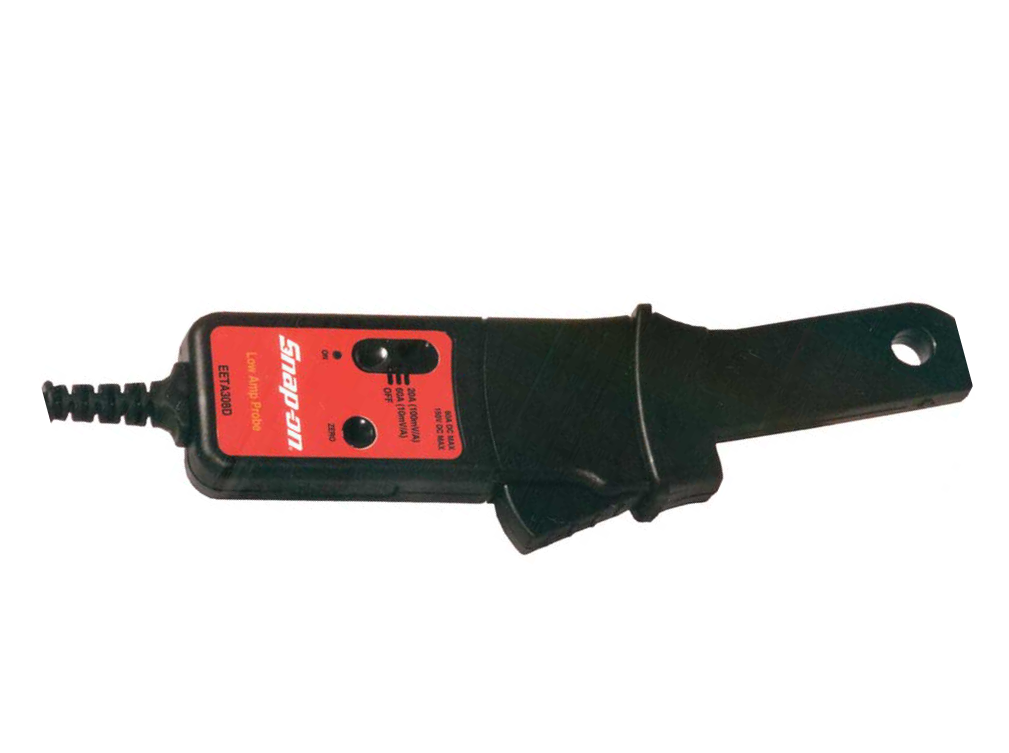
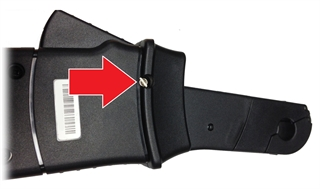
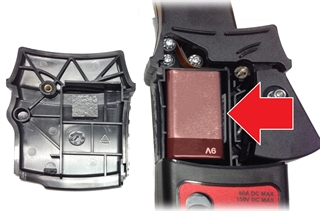
This An optional Low Amp Current Probe is used measure AC or DC current up to 60A. This probe includes two scales (0 to 20A) and (0 to 60A) that can be used to provide accurate and reliable non-intrusive current measurement for components such as, ignition coils, fuel injectors, fuel pumps, relays, and electric motors.
Visit your Snap-on website store, or contact your Snap-on representative. Battery Replacement The RED LED flashes when the minimum operating voltage is approached, indicating that the battery needs to be replaced. When replacing the battery, use the 9-volt alkaline type only. Using any other type of battery in the Snap-on Low Amp Current Probe will invalidate your warranty. To replace the battery:
|
||||||||||||||||||||||||||||||||||||
| Scope / Meter Operations |
How do I measure pressure?
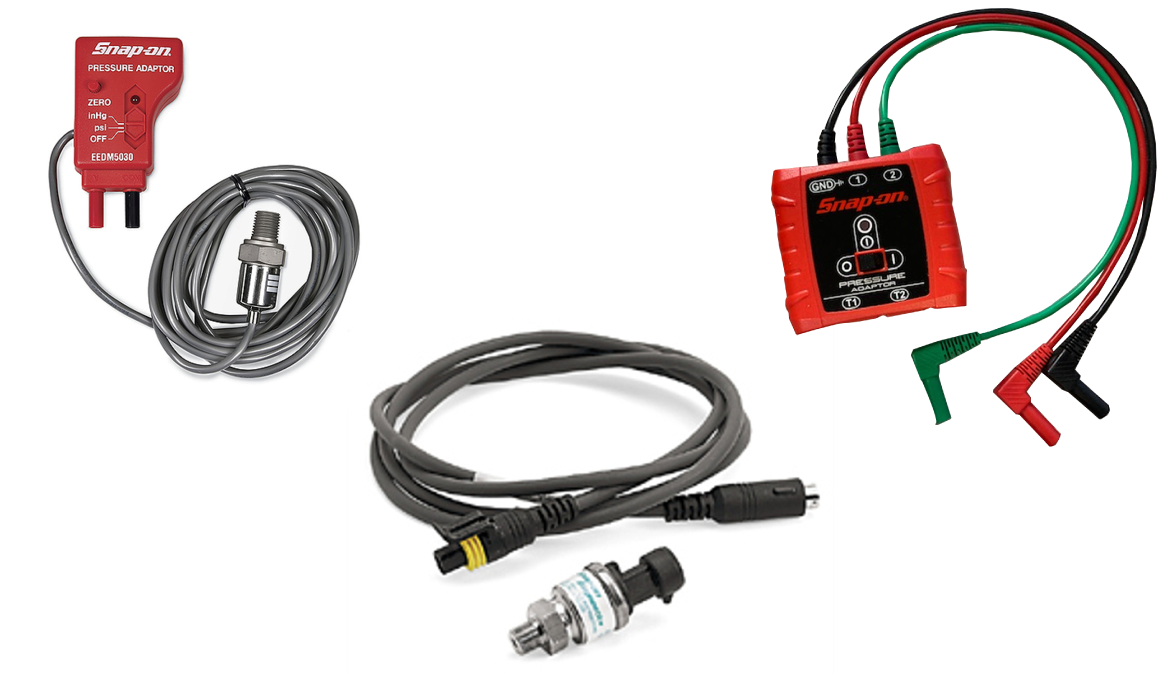
Different pressure transducers and adapters are available for measuring positive and negative gas and liquid pressures. Depending on the adapter, measurement capabilities range from 1 to 5000 psi and up to 29 inHg. Measurement and application capabilities vary per device. The EEMS324PSA Pressure Transducer Adapter allows the use of pressure transducers with the diagnostic tool. It provides 2 channel input and provides power to the pressure transducers. Typical applications include ABS, PS, transmissions, hydraulics, and fuel system tests. The Pressure Transducer Adapter has a LED power indicator, On/Off switch, three color-coded 12” flexible leads with insulated connectors, and requires a 9V battery, which is included. Transducer/cable kits listed below are not included. 0-100 PSI Pressure Transducer - Part# EEPV302AL 0-500 PSI Pressure Transducer - Part# EEPV302AT 0-5000 PSI Pressure Transducer - Part# EEPV302AH
Visit your Snap-on website store, or contact your Snap-on representative. |
||||||||||||||||||||||||||||||||||||
| Scope / Meter Operations | |||||||||||||||||||||||||||||||||||||
| Scope / Meter Operations | |||||||||||||||||||||||||||||||||||||
| Scope / Meter Operations | |||||||||||||||||||||||||||||||||||||
| Scope / Meter Operations |
How do I use the Trigger Feature?
In this User Manual application, see Main Menu > Diagnostic Tool Functions > Scope / Multimeter Operations > Triggers |
||||||||||||||||||||||||||||||||||||
| Scope / MultiMeter Operations |
What is the Scope / MultiMeter function ?
The graphing multimeter(GMM) provides two channels for testing and plots a visual graphing line of the signal. The GMM uses a higher sample rate (than a DMM) to calculate signal measurements. This characteristic along with the visual graph, make the GMM ideal for finding intermittent dropouts or glitches that may not be obvious when viewing a digital value. A key advantage of the GMM is being able to capture a signal over a long time interval and then review it’s graphical history, to visually see if and when dropouts have occurred. The Lab Scope provides two channels for testing and allows you to visually see a signals waveform, which in turn allows you to see the strength and shape of the signal. The lab scope also samples signals at a high rate, which allows you to see a higher level of detail in short samples of the signal, especially in signals that change rapidly. In addition, the lab scope also provides more control over the acquisition of the signal and in how it is displayed, through the use of triggers and channel controls. All of these features allow you to analyze signals in great detail when performing component testing. To use these functions, open as shown below = Home Screen > Scope / Multimeter>(Lab Scope, Graphing Multimeter or Digital Multimeter) Connect the supplied test leads and probes as applicable using one or both channels and the ground lead. See How do I connect the meter leads to the tool? For additional information, within this User Manual application, see Main Menu > Diagnostic Tool Functions > Scope / MultiMeter. |
||||||||||||||||||||||||||||||||||||
| Secure Vehicle Gateways |
What is Security Link?
This feature is not available on all diagnostic tools. To protect vehicle communication networks from unauthorized access, OEM’s are implementing Security Link modules that only allow authorized users to access certain diagnostic functions using an approved diagnostic tool. Using Security Link and your Snap-on diagnostic tool, you can have the ability to communicate with most vehicles that are equipped with Security Link modules. Currently Security Link is only compatible with Fiat Chrysler Automobiles (FCA) 2018+ models. How do I get setup to use it, so I can connect to vehicles with Secure Vehicle Gateways?
For more information on how to setup these accounts and get authorized: See Security Link™ (opens new tab) Before you can use Security Link , you need to create a Snap-on Technician Profile, see Snap-on® Techincian Profile (opens new tab). |
||||||||||||||||||||||||||||||||||||
| Snap-on Cloud |
What is the "Get Connected" menu option for?
This option is not available on all diagnostic tools. Get Connected allows you view the diagnostic tool serial number, PIN and Code needed to create a Snap-on Technician Profile, that allows you to use the Cloud. See Get Connected |
||||||||||||||||||||||||||||||||||||
| Snap-on Cloud |
Where do I find my code numbers to create a Snap-on Technician Profile?
Get Connected allows you view the diagnostic tool serial number, PIN and Code needed create a Snap-on Technician Profile, that allows you to use the Cloud. See Get Connected |
||||||||||||||||||||||||||||||||||||
| Snap-on Cloud |
What is the Snap-on Cloud and how do I use it?
This feature is not available on all diagnostic tools. Snap-on Cloud is a mobile-friendly cloud-based application designed specifically for technicians to store, organize and share information. For setup help, see Snap-on Cloud (opens new tab) Using Snap-on Cloud (ALTUSDRIVE.com) allows you to:
To access and use the Snap-on Cloud (opens new tab) you need to first setup a Snap-on® Techincian Profile (opens new tab). |
||||||||||||||||||||||||||||||||||||
| Snap-on Technician Profile |
How do I setup my Snap-on Technician Profile?
Before you can use the Snap-on Cloud or Security Link applications, you need to create a Snap-on Technician Profile. |
||||||||||||||||||||||||||||||||||||
| Software |
Is there a software license agreement?
Software license agreements are integrated into the software and are "accepted" when the tool is initially activated and whenever a new software upgrade is installed. Use of Software is governed by the terms and conditions of the End User License Agreement. The diagnostic tool should not be initially operated until the End User License Agreement is read. Use of the device acknowledges your acceptance of the End User License Agreement. The Snap-on Incorporated Software End User License Agreement may be provided with the diagnostic tool, and is available at: https://eula.snapon.com/diagnostics For customer and end-user access and convenience, Snap-on is providing the End User License Agreements (link above) applicable to the Snap-on Diagnostics software and platforms. These agreements or an earlier one you agreed to was either provided as hard copy or resident within the diagnostics platform software. |
||||||||||||||||||||||||||||||||||||
| Software | |||||||||||||||||||||||||||||||||||||
| Software | |||||||||||||||||||||||||||||||||||||
| Troubleshooting |
My tool does not turn on or boot up, what is wrong?
Check the power source. |
||||||||||||||||||||||||||||||||||||
| Troubleshooting |
My tool is not operating correctly, or freezes, what do I do?
In situations where the display is frozen and is not responding to touch screen actions or control buttons, it may be necessary to perform an emergency shutdown. It is not recommended to do this during active vehicle communication, try to exit vehicle communication before shutting down.
The display screen will turn off and the LED backlit power button will turn red and begin blinking.
If you are still experiencing difficulties, contact customer support Phone
|
||||||||||||||||||||||||||||||||||||
| Vehicle History | |||||||||||||||||||||||||||||||||||||
| Wi-Fi |
Can I connect to the Internet?
Yes, your diagnostic tool is equipped with a Windows browser and Wi-Fi connection ability, see Wi-Fi Connection |
||||||||||||||||||||||||||||||||||||
| Wi-Fi | |||||||||||||||||||||||||||||||||||||
| Windows OS | |||||||||||||||||||||||||||||||||||||
| Windows OS | |||||||||||||||||||||||||||||||||||||
| Windows OS |
Can the Windows Operating System be changed?
Your diagnostic tool delivers exclusive coverage, more capabilities, superior performance and runs on a special version of the Microsoft® Windows® 10 operating system. DO NOT install another operating system on this diagnostic tool. The modification or installation of a different OS or OS version will damage the diagnostic tool and void its warranty. |
||||||||||||||||||||||||||||||||||||
| Not Finding an Answer to My Question |
I have more questions, who do I ask?
Website
Phone
Helpdesk www.snapontools.com.au/diagnostics/diagnostic_helpdesk_registration |
||||||||||||||||||||||||||||||||||||
| Customer Support |
How do I contact customer support?
Website
Phone
Helpdesk www.snapontools.com.au/diagnostics/diagnostic_helpdesk_registration |
 Guided Component Tests provides vehicle specific step-by-step testing and reference information for electrical components and sensors.
 is located on the Home screen.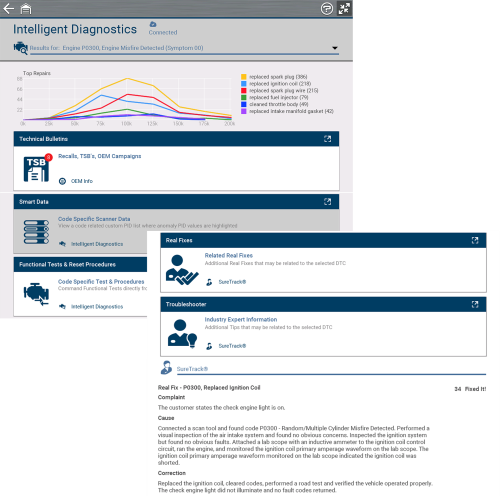



 Much like a standard multimeter, the Scope Multimeter function allows you to perform multiple types of circuit and component measurement tests using the built in Digital Multimeter (DMM). In addition, two more powerful features are also built in, Graphing Multimeter (GMM) and Lab Scope.
 The
The