Use the Quick-Access Menu as a shortcut to “jump” between functions, or to Exit the active vehicle. This menu is available within most functions (after identifying a vehicle), and is application sensitive, being that it provides only applicable links based on your location in the software.
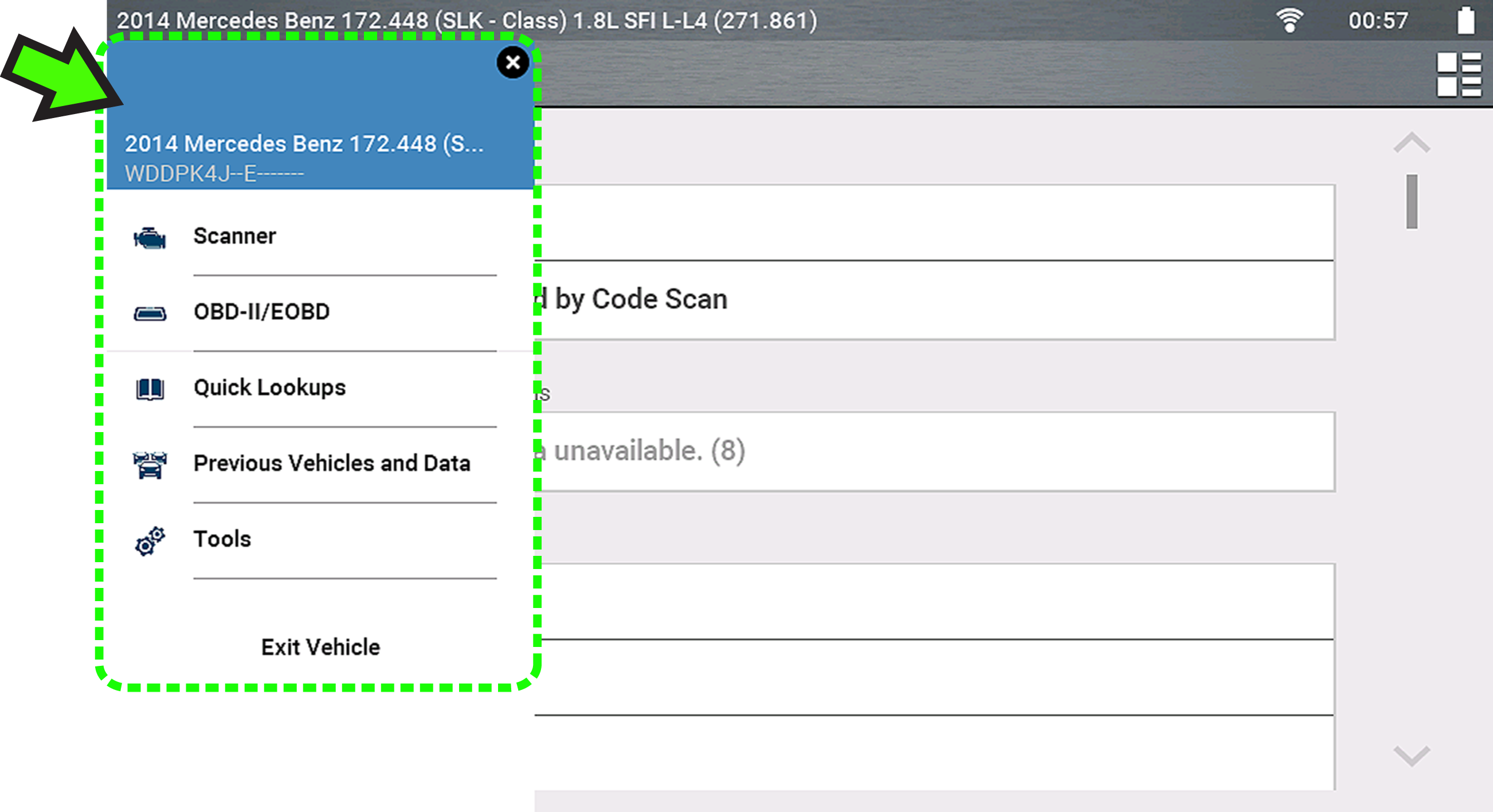
The menu title displays the active vehicle identification information including the VIN.
Selecting the Home icon  opens the Quick-Access Menu, depending on your location in the software.
Examples:
| ● | Scanner to OBD-IIEOBD - to check monitor status or freeze frame data etc |
| ● | Scanner to Previous Vehicles and Data - to view a code scan report, screen shot, or captured PID data |
| ● | OBD-IIEOBD to Scanner - to check enhanced codes and access Intelligent Diagnostics |
| ● | Scanner to Exit Vehicle - to quickly end vehicle communication |
| ● | Scanner to Tools - to change display settings, turn Wi-Fi on, configure the Shortcut button or connect to a PC |


