Uploading Code Scan (Vehicle System Reports) to the Snap-on Cloud
All tools listed may not be applicable and/or available in your market.
 DIAGNOSTIC TOOL APPLICATION - TRITON-D10™, TRITON-D8®,
 To upload data to the Snap-on Cloud, the diagnostic tool must be connected to Wi-Fi, and you need to have a Snap-on Technician Profile.
Code Scan is not supported on all vehicles.
Home Screen: Scanner > (Identify Vehicle) > Code Scan (System Menu)
| 1. | From your diagnostic tool, once you have connected and identified a vehicle through Scanner, select Code Scan from the System menu. |

| 2. | Choose which type of Code Scan, Pre, Post, or Health Scan. |

Code Scan runs an active scan of vehicle control modules, and then displays the results.
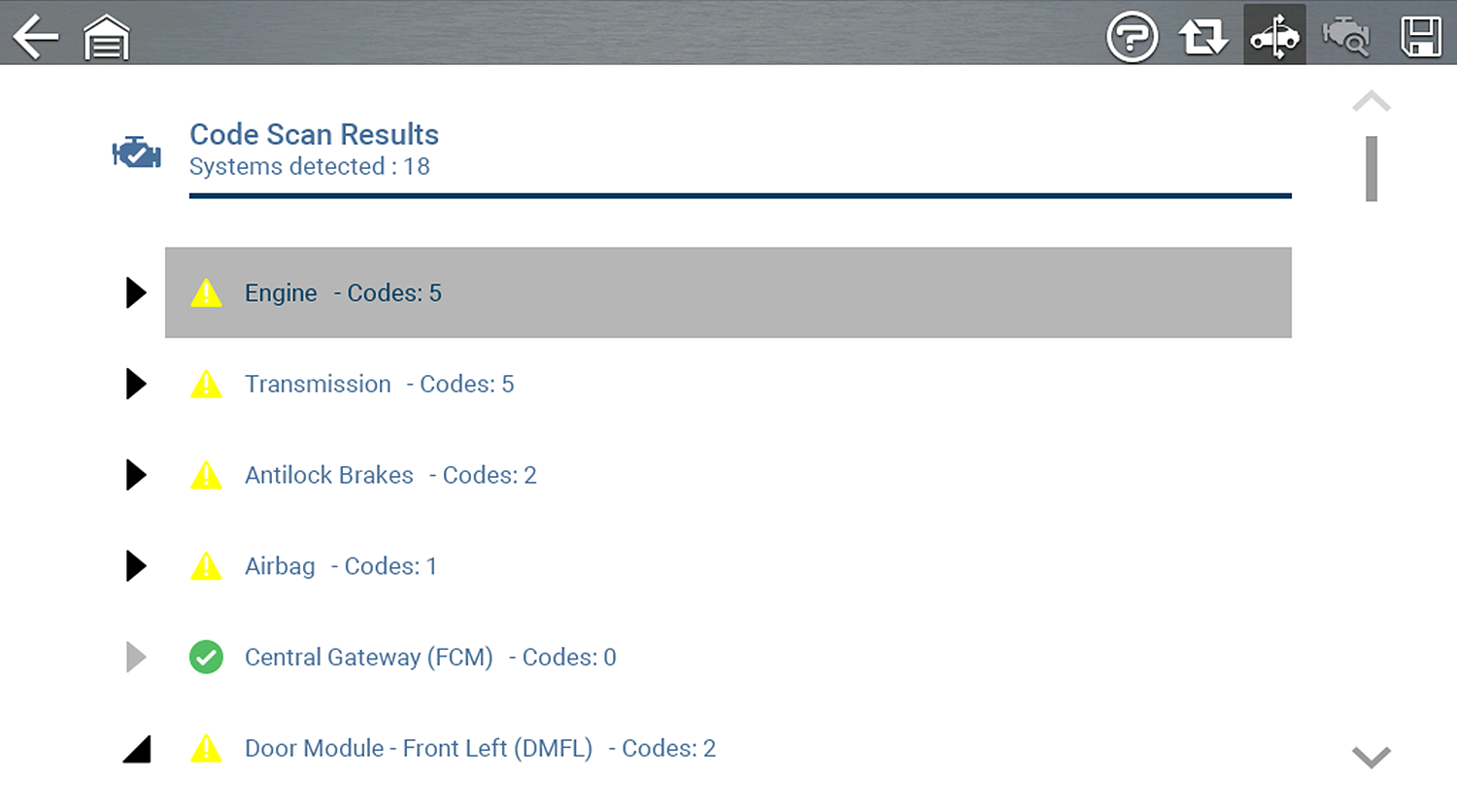
Once completed, code results are displayed onscreen by system, and the report is saved to the Snap-on Cloud .
Uploading Code Scan (Vehicle System Reports) to the Snap-on Cloud
DIAGNOSTIC TOOL APPLICATION - ZEUS+™, ZEUS® and VERUS® Edge
To upload data to the Snap-on Cloud, the diagnostic tool must be connected to Wi-Fi, and you need to have a Snap-on Technician Profile.
Code Scan is not supported on all vehicles.
Home Screen: Scanner > (Identify Vehicle) > Code Scan (System Menu)
| 1. | From your diagnostic tool, once you have connected and identified a vehicle through Scanner, select Code Scan from the System menu. |
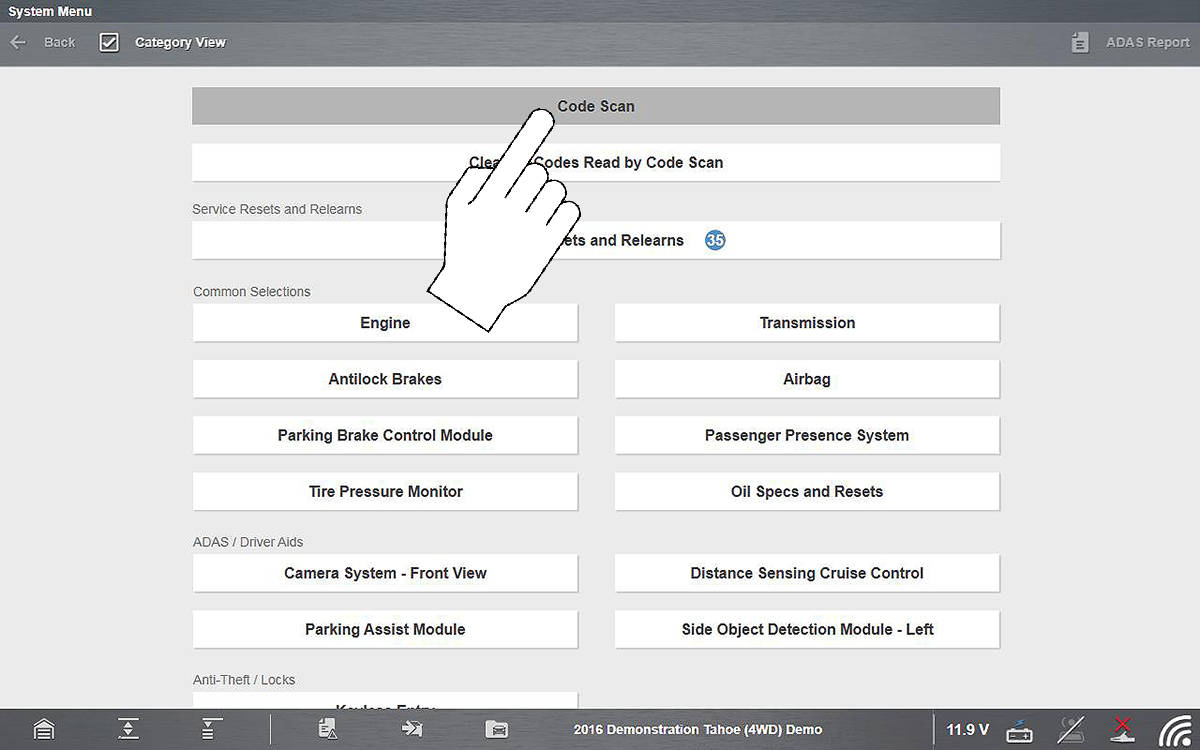
| 2. | Choose which type of Code Scan, Pre, Post, or Health Scan. |
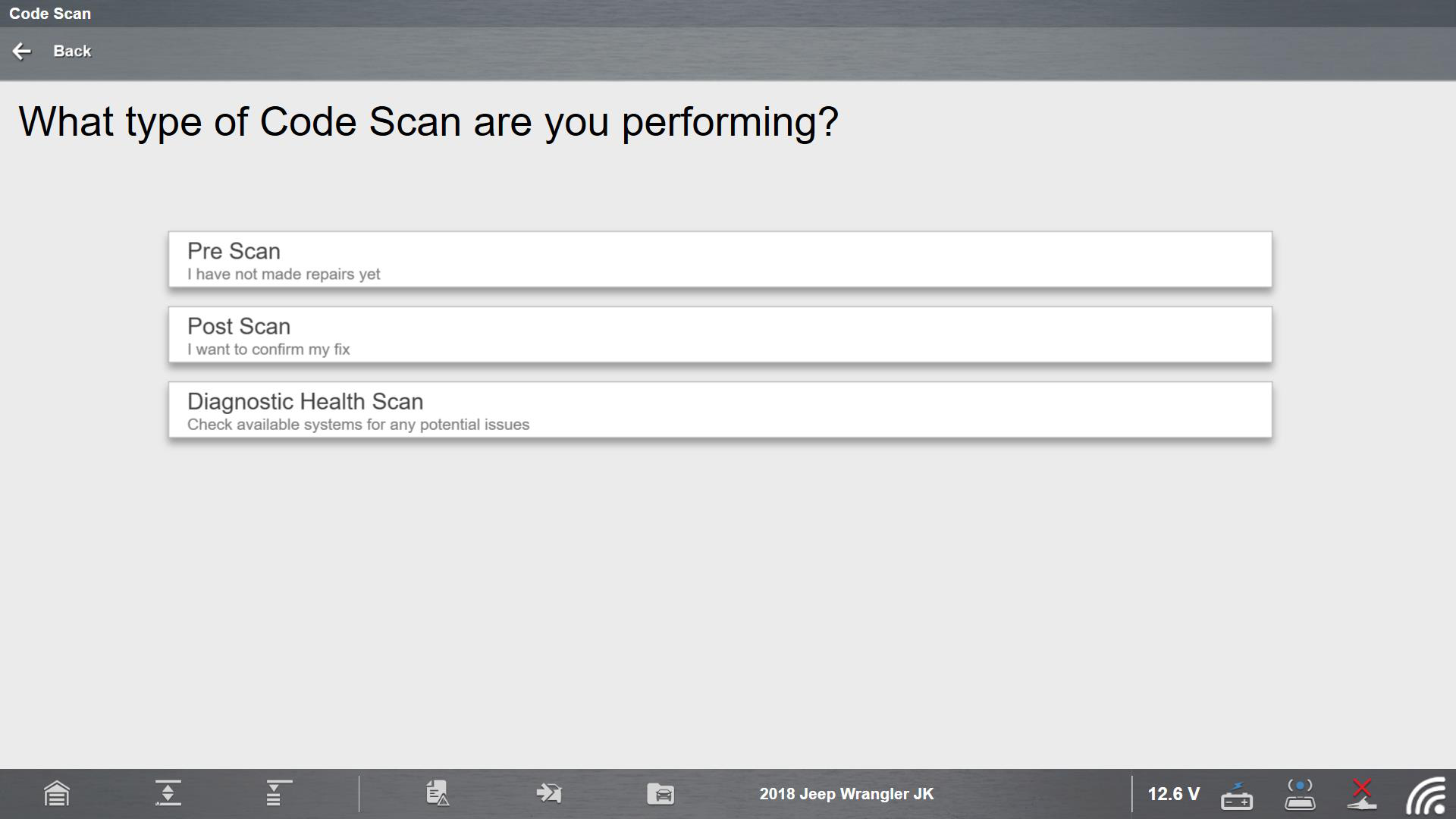
Code Scan runs an active scan of vehicle control modules, and then displays the results.
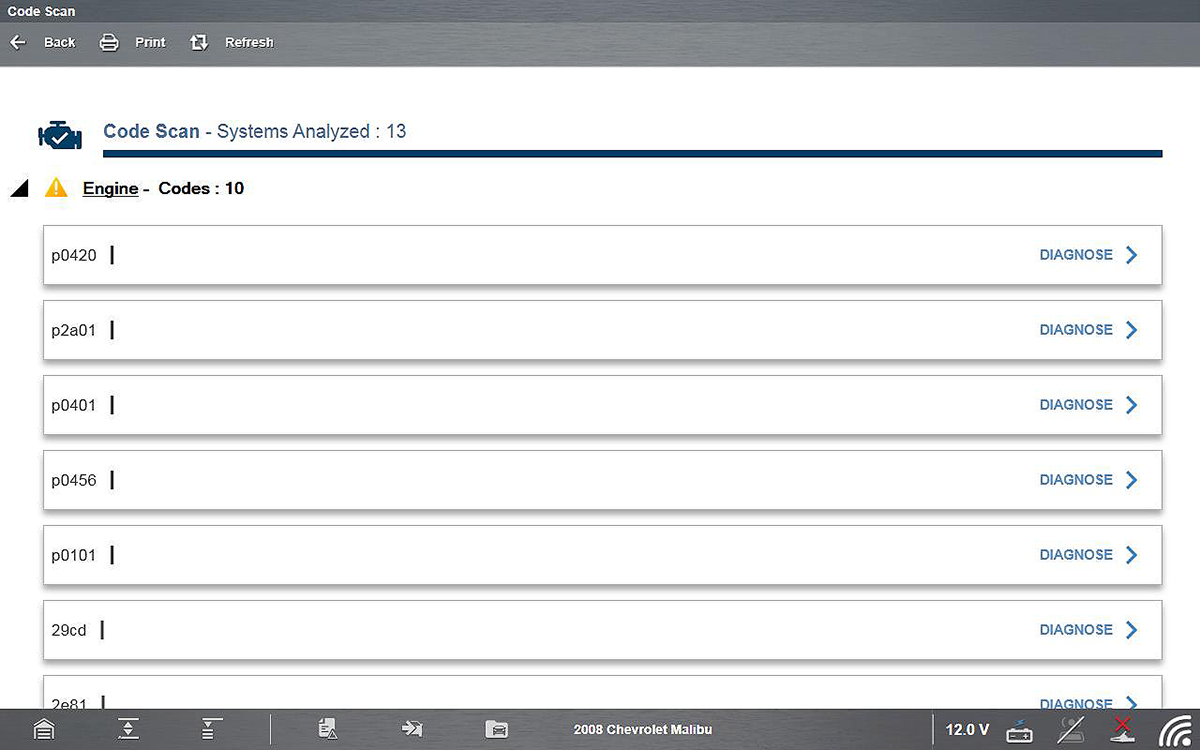
Once completed, code results are displayed onscreen by system, and the report is saved to the Snap-on Cloud .


