Home Screen: Tools > Settings > System Settings > Display > Brightness
Selecting this option opens the brightness setting screen for adjusting the back lighting of the display.
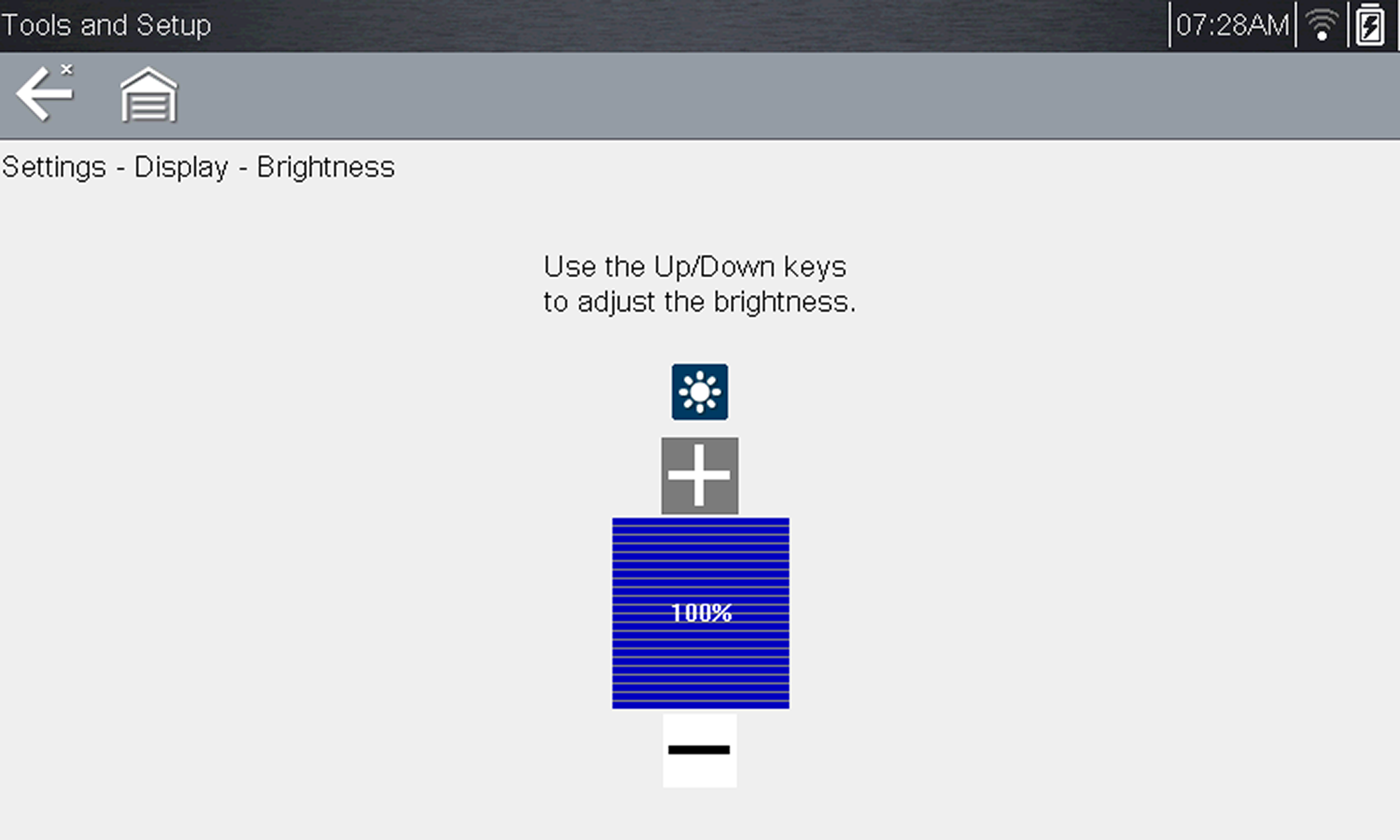
Brightness setting
Each push of the Plus and Minus icons, or the up (b) and down (d) arrows, incrementally changes the back lighting up or down respectively.
Select Back from the toolbar or press the N/X button to exit.
Color Theme
Home Screen: Tools > Settings > System Settings > Display > Color Theme
This option allows you to select between a white and black background for the screen. The black background can be beneficial when working under poor lighting conditions.
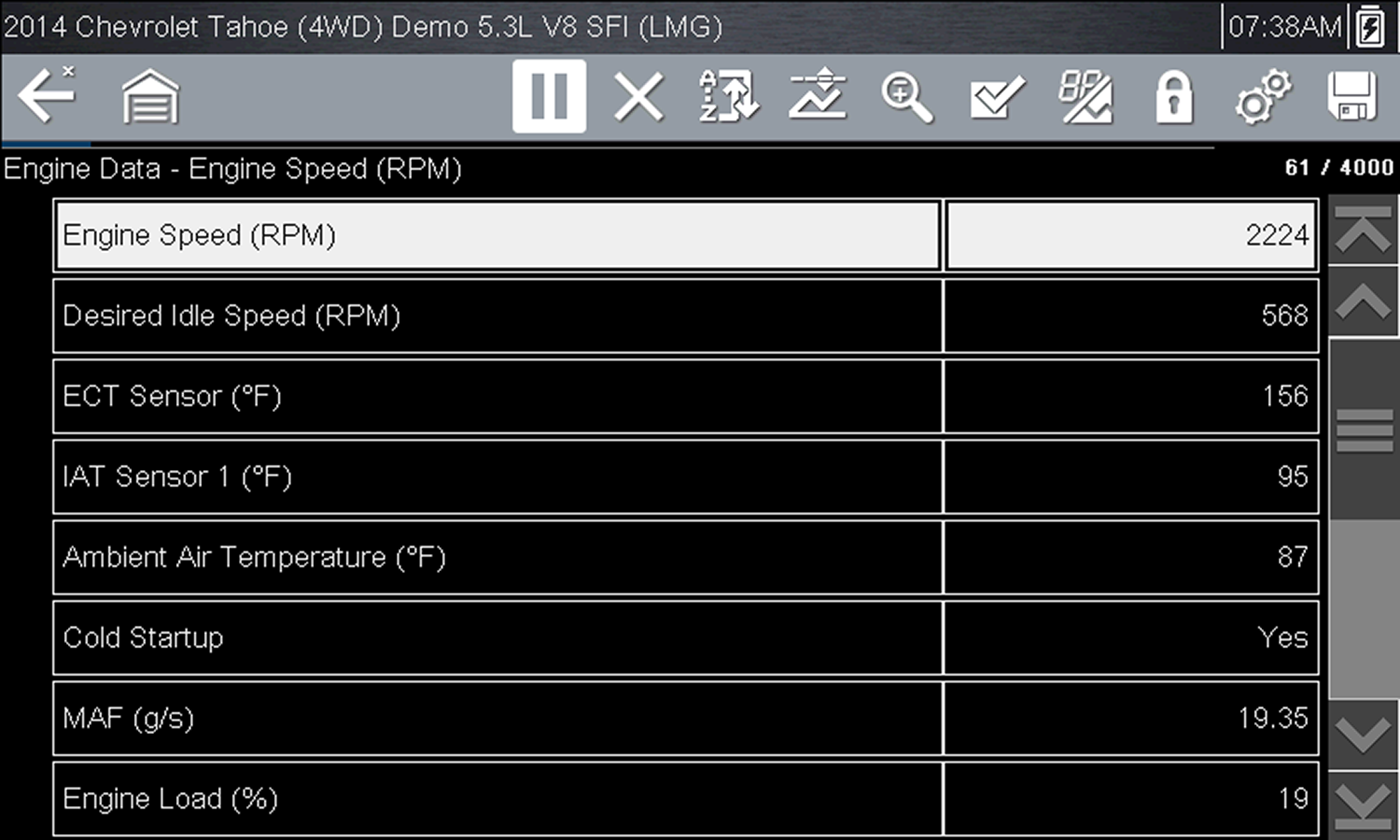
Night Theme
Selecting opens a menu with two choices: Day Theme (white background) and Night Theme (black background). Make a selection and a “please wait” message momentarily displays followed by the Home screen. The new toolbar setting is now active.
High Contrast Toolbar
Home Screen: Tools > Settings > System Settings > Display > High Contrast Toolbar
This option allows you to switch to a high contrast toolbar. This toolbar features black and white icons with crisp graphics that are easier to see in poor lighting conditions or bright sunlight.
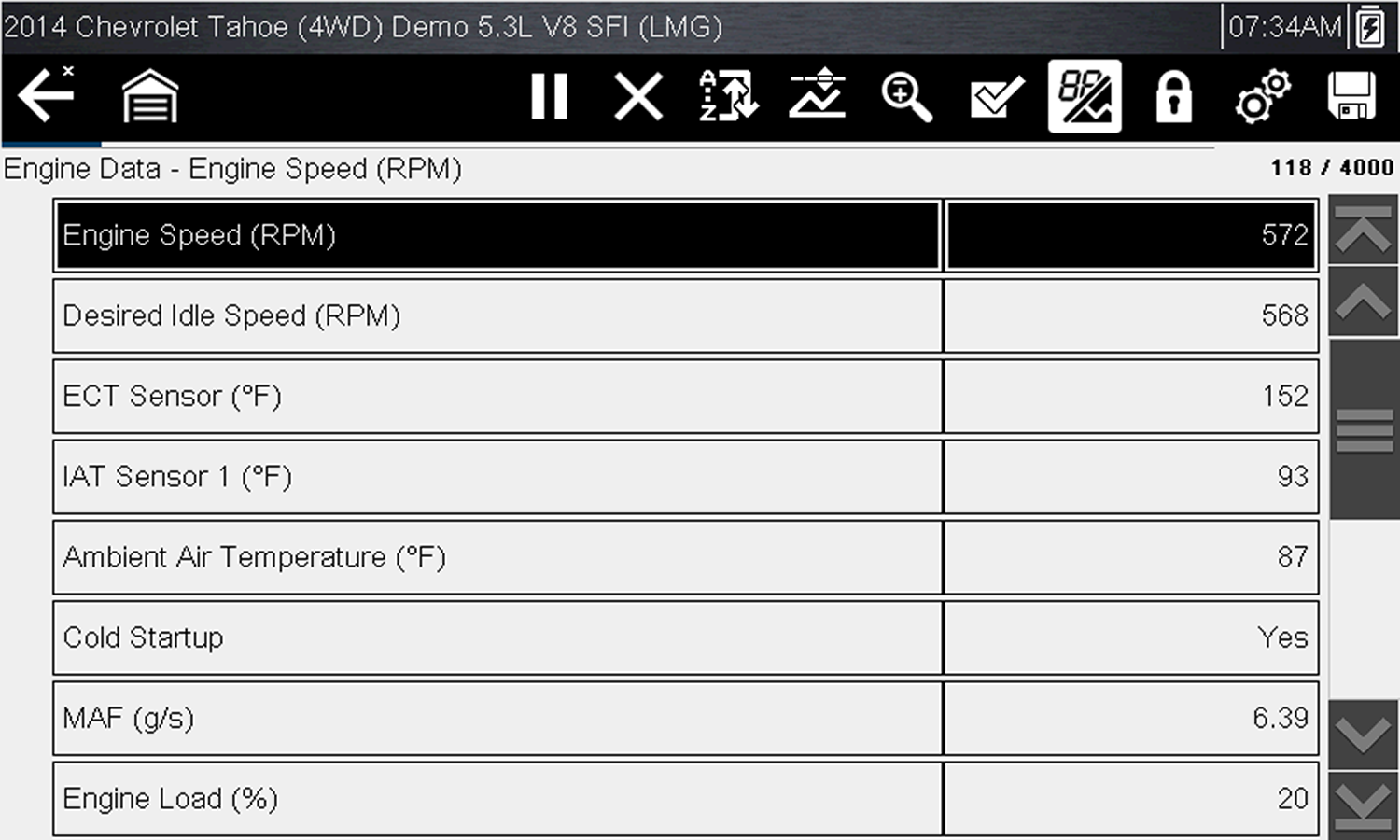
High-contrast toolbar
Selecting opens a menu with two choices; Color Toolbar and High Contrast Toolbar. Select and a “please wait” message displays followed by the Home screen. The new setting is now active.
Touch Screen Calibration
This feature is NOT applicable for all diagnostic tools, your tool may not have this option.
Home Screen: Tools > Settings > System Settings > Display > Touch Screen Calibration
Calibrating the touch screen maintains the accuracy of the touch-sensitive display.
To avoid serious damage to the diagnostic tool, always complete the touch screen calibration sequence once it has begun. Never turn off the diagnostic tool while a screen calibration is in process.
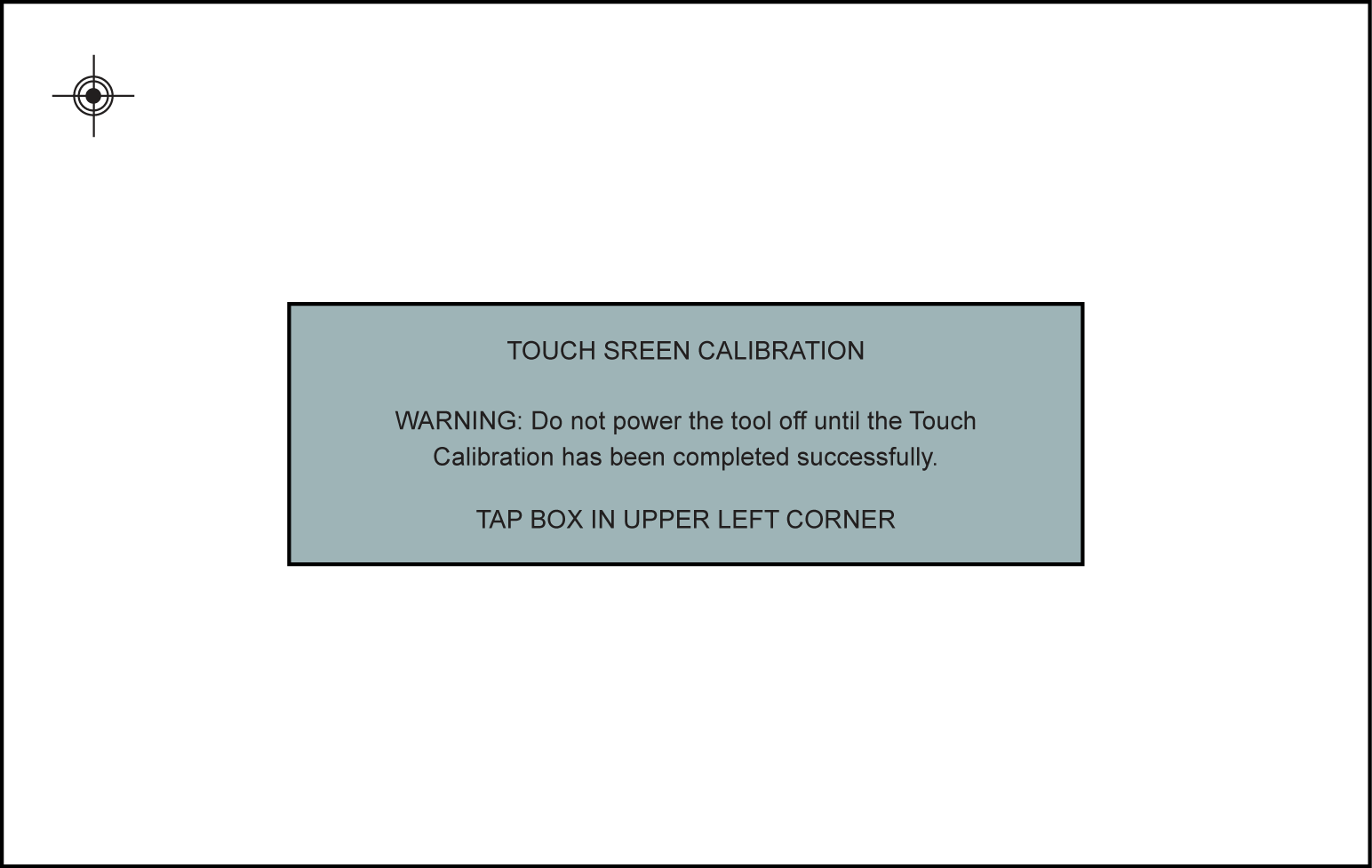
Touch screen calibration
| 1. | Select the center of each alignment indicator on the screen as they display in the corners of the screen, starting in the upper left corner. |
| 2. | Once all four indicators have been selected, the verification process starts the procedure again. Select the center of each alignment indicator when prompted. |
| – | If the calibration is successful, the “Touch Calibration Results - Passed” screen is displayed. Press the Y button to complete the process and return to the Display menu. |
| – | If the calibration is not successful, the “Touch Calibration Results - Failed” screen is displayed. Press the Y button to perform the procedure again. |
The results screen shows the entered calibration of each indicator. Ideal calibration would be to select each indicator exactly in the center, however selection inside the displayed circle is acceptable. If selecting the center is difficult using your finger, use a touch screen stylus (not included).
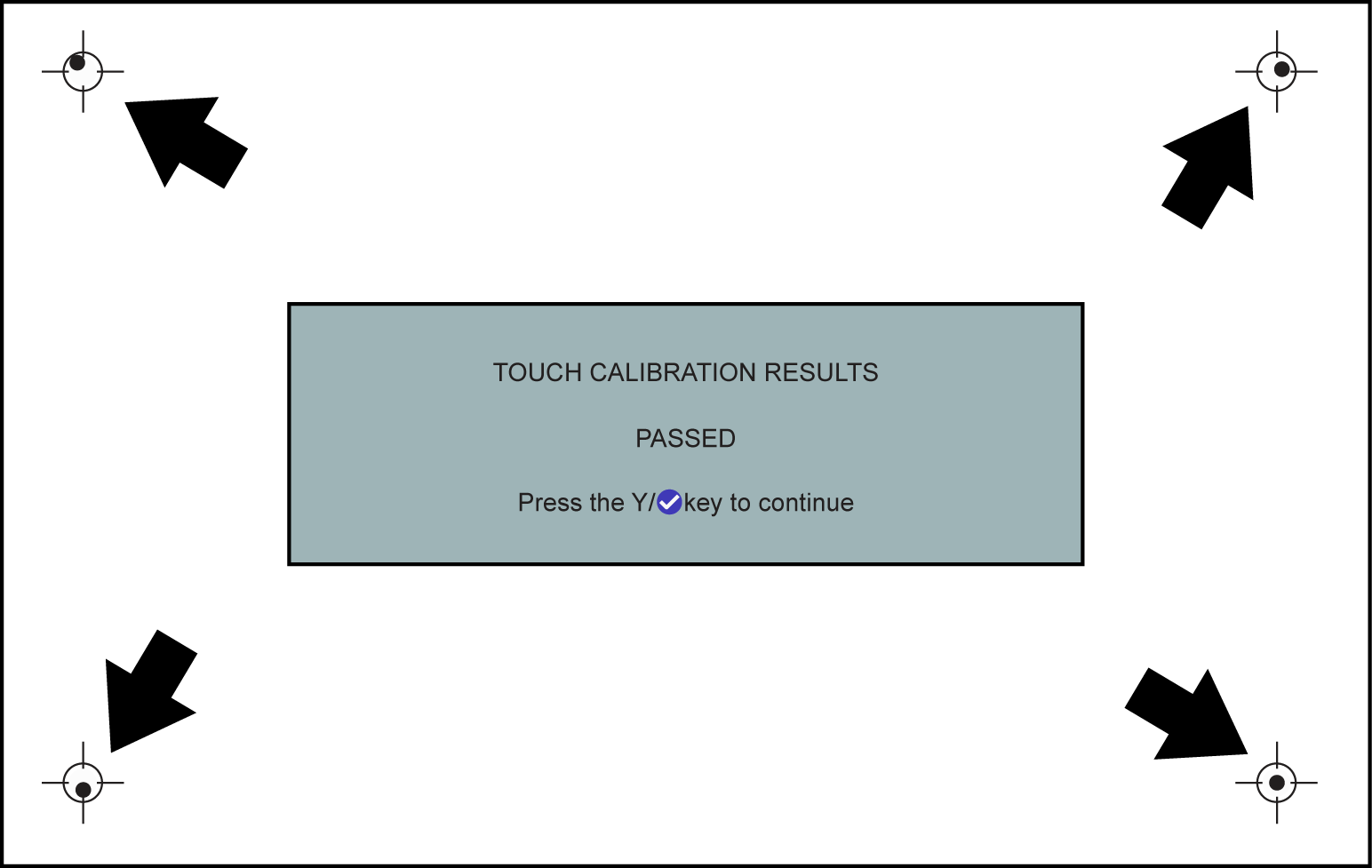
Touch screen calibration - Passed
Backlight Time
Home Screen: Tools > Settings > System Settings > Display > Backlight Time
This option allows you to configure how long the screen backlight remains on when the diagnostic tool is inactive. The following choices are available:
| ● | Always On |
| ● | 15 Seconds |
| ● | 30 Seconds |
| ● | 45 Seconds |
| ● | 60 Seconds |
Select the desired option or scroll and then press the Y/a button to make a selection. Select Back or Home on the toolbar to return to either the Settings menu or the Home screen.
Font Type
Home Screen: Tools > Settings > System Settings > Display > Font Type
This option allows you to select between standard and bold faced type for the display screen. Bold type makes screen writing more legible under poor lighting or bright sunlight conditions.
Select the desired option or scroll and then press the Y/a button to make a selection. The change is instantaneous. Select Back or Home on the toolbar to return to either the Settings menu or the Home screen.


