Installing Software
Installing Software Updates & Upgrades via ShopStream Connect PC app.

To receive software updates or upgrades, SSC software must be installed on your PC and have connection to the Internet.
For more information, and to download SSC, see ShopStream Connect Help
| 1. | On your PC start the SSC application. |
| 2. | Connect the AC power adapter to the diagnostic tool (if applicable). It is highly recommended to power the tool using the adapter during any update or upgrade procedure. |
| 3. | Connect your diagnostic tool to the PC using the supplied USB cable. |
Before software installation, End User License Agreement (EULA) acceptance is required.
Use of Software is governed by the terms and conditions of the End User License Agreement. The diagnostic tool should not be initially operated until the End User License Agreement is read. Use of the device acknowledges your acceptance of the End User License Agreement. The Snap-on Incorporated Software End User License Agreement is available at: https://eula.snapon.com/diagnostics
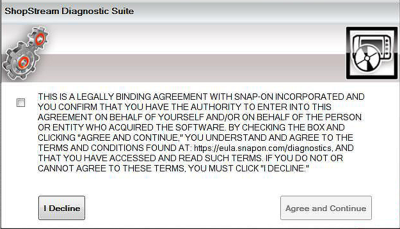
At the screen prompt click the checkbox on the left side of the window, and then select Agree and Continue. The software will be installed automatically.
This is a typical EULA acceptance agreement screen.
| 1. | Select Tools > Update Software > (diagnostic tool type - e.g. TRITON D8, MODIS Ultra, etc.) from the Menu bar. |

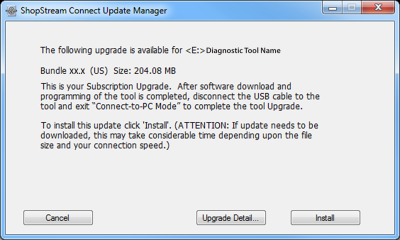
| 2. | If an update is available, read and follow the screen prompts to begin the download and installation. |
| 3. |
|
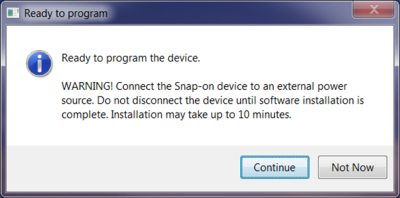
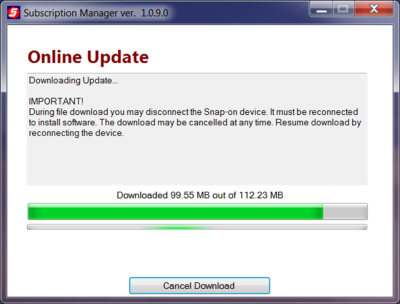
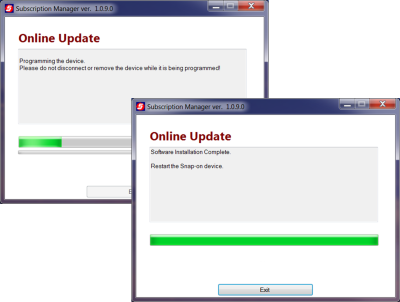
| 4. | Once programming is completed select Exit, then restart the diagnostic tool. |
Do not disconnect or remove the diagnostic tool during programming.
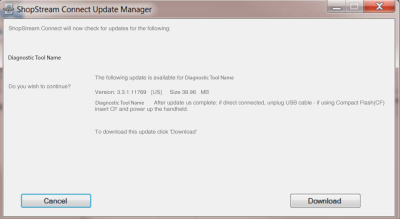
| 1. | Select Tools > Update Software > (diagnostic tool type - e.g. TRITON D8, MODIS Ultra,, etc.) from the Menu bar. |

The software checks the Snap-on web server for available updates.
| 2. | If service release updates are available, select Next to continue, then select Download and follow the screen prompts to complete the installation. |
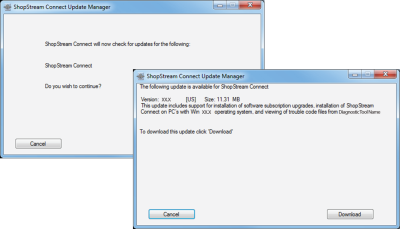
| 1. | Select Tools > Update Software > ShopStream Connect from the Menu bar. |
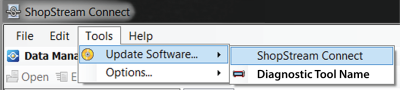
The software checks the Snap-on Web server for available updates.
| 2. | If updates are available, select Next to continue then select Download and follow the screen prompts to complete the installation. |