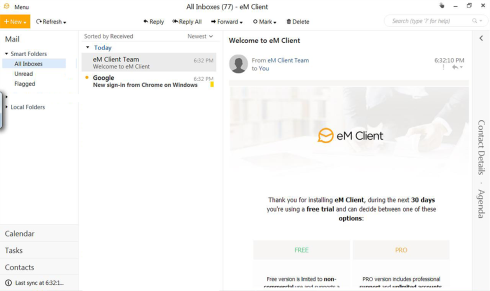
The Data Manager function features an e-mail option that allows you to send a saved data or image files as an e-mail attachment. To use this feature, you must install an e-mail client, and then link your existing e-mail address to the client.
The following instructions are intended as a guide only, as e-mail client setup procedures vary. See Email for information on sending e-mails from Data Manager.
► E-mail client installation and setup (Example):
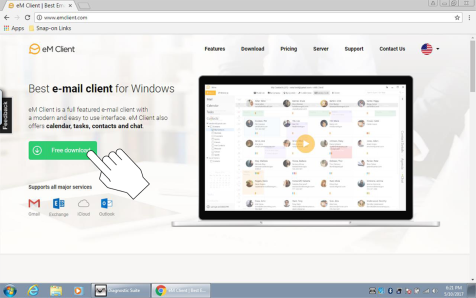
| 1. | Download an email client (e.g. eM Client) (). |
| 2. | Install the software following the screen prompts (). |
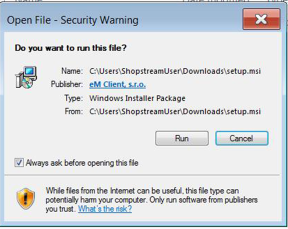
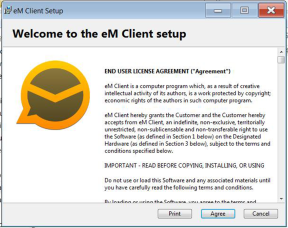
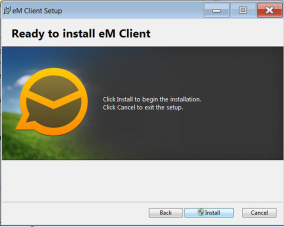
| 3. | The Data Manager e-mail feature uses the Windows system e-mail client. |
| 4. | Select “Use this client as default application” option when prompted. This sets the client as the Windows system e-mail client. |
| 5. | Enter your e-mail information as required (). |
E-mail client configuration settings should automatically be set during installation. If problems arise with the setup and manual configuration is needed, refer to the e-mail client help information and the Windows help information.
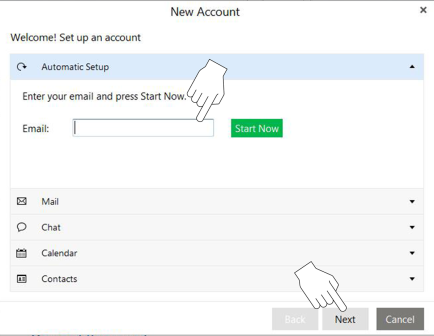
| 6. | If your existing email provider login screen displays, enter your email address and password to allow the client to continue the setup with your provider (). |
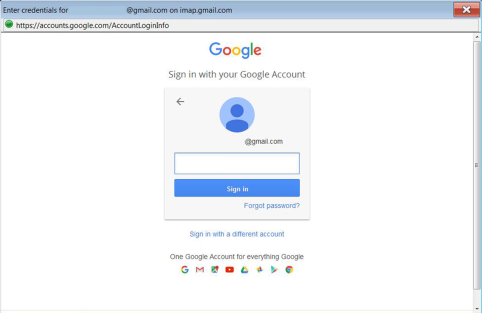
| 7. | Follow the screen prompts to allow the client to link to your email address. |
| 8. | Once the client has successfully linked to your address, you can begin using the new e-mail client software on the diagnostic tool (). |